How to turn an old security camera into an AI home assistant

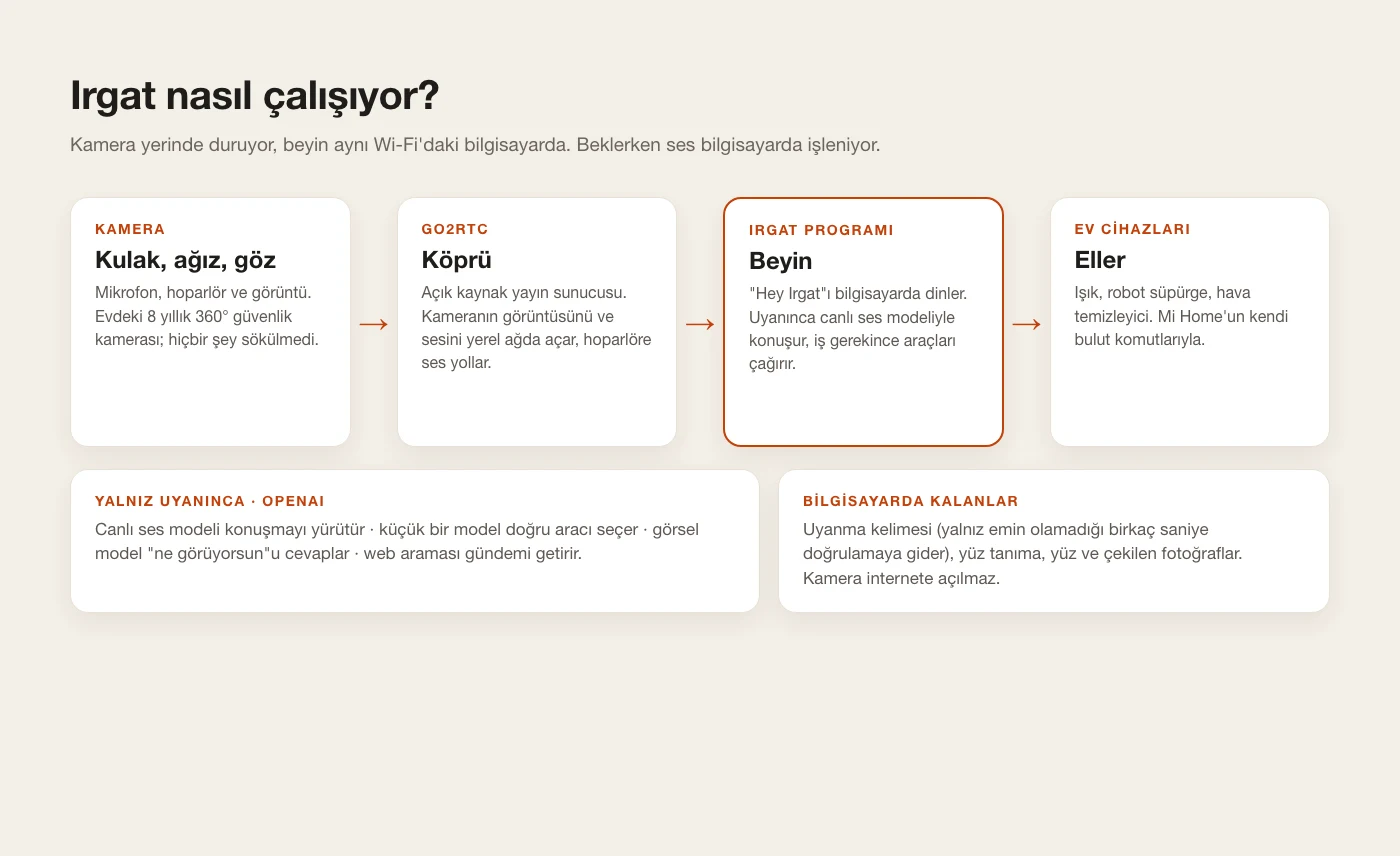
This system runs in my home right now. I didn't touch the camera: its mic became the ears, its speaker the mouth, its image the eyes. The brain is a Python program on a computer on the same Wi-Fi (a Mac, in my case). While it waits, audio is processed on the computer: it listens for “Hey Irgat” itself and only sends a few seconds out for a transcription check when it isn't sure. The conversation goes to OpenAI's live voice model only after it wakes up. It controls home devices with Mi Home's own commands. This is an advanced guide; at the end there's a ready Claude Code prompt to build the same thing from scratch. Note: the camera sees and hears a shared space in your home; don't set it up without everyone at home knowing and agreeing.
What you'll need
- A Xiaomi camera with a mic and a speaker, paired in Mi Home (mine is an old Mijia 360° camera; check that your model is supported by go2rtc first)
- A computer that stays on, on the same Wi-Fi (Mac, Windows or a Raspberry Pi 5)
- An OpenAI API account (live voice model, a small language model, speech-to-text and text-to-speech)
- Optional: a smart bulb, robot vacuum and air purifier paired in Mi Home
- Being comfortable with a terminal (I built this for my own home)
Step by step
1. Picture the pieces
There are four pieces. The camera: mic, speaker and image; it stays where it is. go2rtc: an open-source streaming server on the computer that exposes the camera's video and audio on the local network and sends audio back to its speaker. The Irgat program: listens for “Hey Irgat”, talks through a live voice model once awake, and calls tools when a task is needed. The home devices: the bulb, vacuum and purifier are controlled through Mi Home's cloud commands. I never exposed the camera to the internet; everything stays on the home network and only the conversation and device commands go out.
2. Connect the camera: go2rtc
Using go2rtc's Xiaomi support, I paired the camera once with my Xiaomi account; the cloud is only used for the encryption key, while video and audio flow over the local network. Video and the mic worked on the first try. I measured the mic audio at 16 kHz; if you process it as 8 kHz it sounds muffled. The camera's address on the network can change when the router restarts; giving it a fixed address in the router, or looking it up from Mi Home at startup, makes life easier.
3. The speaker trap: static
This is where I lost the most time. When I sent audio to the camera I heard only static instead of Turkish speech; I tried more than 10 variants with different audio formats and every one was broken. The problem wasn't my settings but go2rtc itself: the code that writes the Xiaomi speaker packet copied the header twice instead of the audio payload, so no audio ever reached the camera. I use my own build with a one-line fix. On this model I also had to write the packet header the same way as the camera's own mic packets (16 kHz, 40 ms chunks). Second trap: writing audio in bursts breaks it again; streaming it in real time, in steady 20 ms steps, comes out clean.
If the speaker only hisses, first check whether any audio payload is actually being sent; trying formats can eat hours.
4. The wake word: “Hey Irgat”
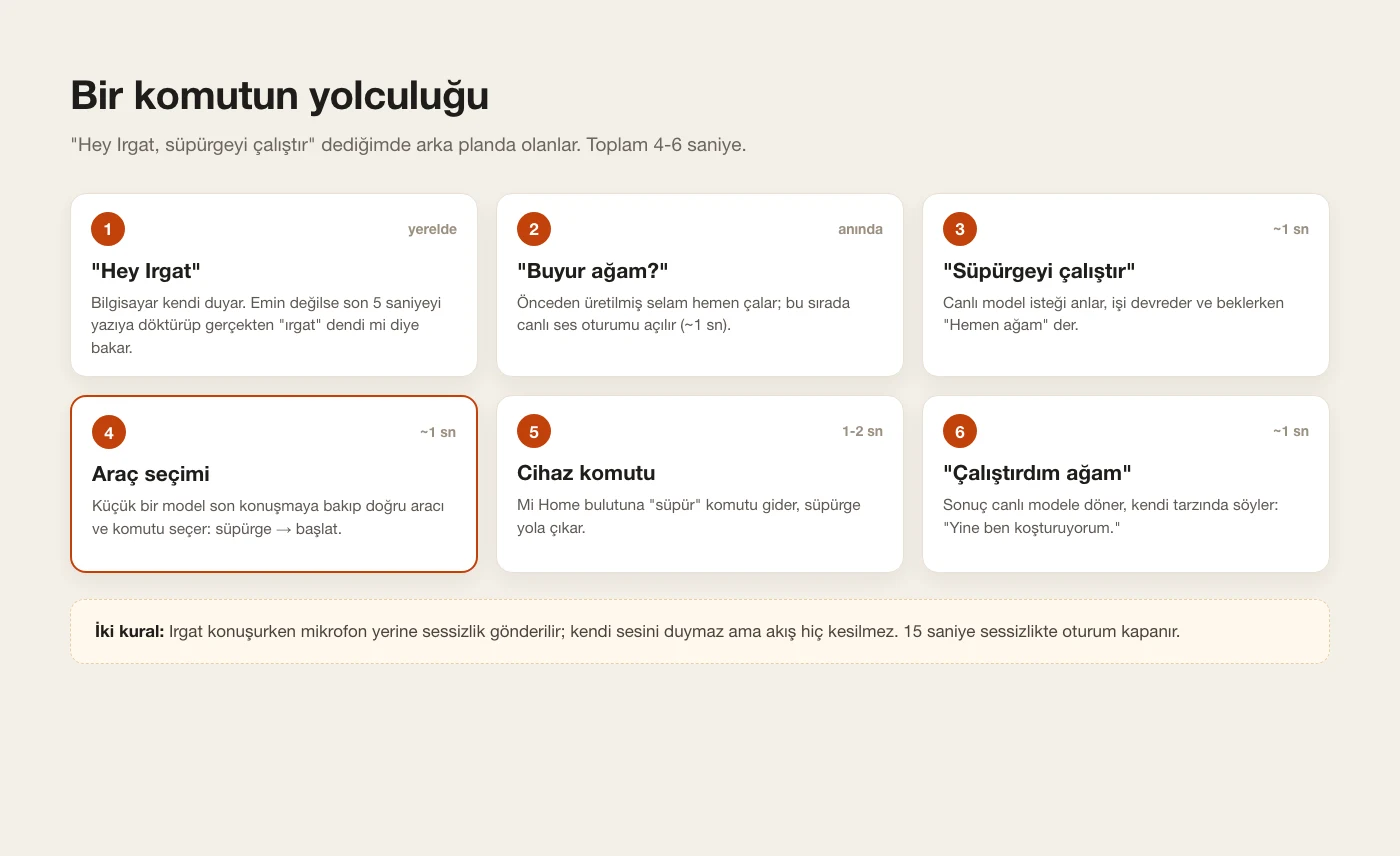
The computer listens to the camera's mic all the time, but locally: Vosk's small Turkish model runs offline and free. The trap: “ırgat” isn't in that model's vocabulary. It heard me as “hey evlat”, “hırvat”, “yozgat”, so I accept those near-misses too. Because the camera sits under the TV there were false alarms, and it missed me when I called from across the room. The fix is a two-stage check: when the local model isn't sure, I send the last 5 seconds to a speech-to-text model (~0.7 s), and it only wakes if the transcript really contains “ırgat”. On wake, a pre-generated “Buyur ağam?” (“Yes, boss?”) plays instantly, so there's no silence while the live session opens.
5. The brain: a live voice model
On wake, a session opens with OpenAI's live voice model (GPT-Live): while the camera's mic audio streams in, the model's reply audio streams out and goes straight to the camera's speaker. I built the character with instructions: a farmhand who grumbles but gets the job done. He calls me “ağam” (boss) and complains about overtime and wanting a raise, but the joke is always on the boss, never on workers or anyone else. Since my 5-year-old son lives here too, there's a child mode: when a child talks, no teasing, short warm sentences, English as a game, and “let's ask your dad” for anything risky. The session closes after 15 seconds of silence, and also if Irgat hasn't spoken for 45 seconds, so the TV can't keep it open.
6. Two traps: frozen replies, an unheard second command
In the first version I stopped sending the mic to the model entirely while Irgat was talking, so it wouldn't hear itself. Result: it froze mid-sentence while reading the news, and after a reply it never heard the second command. The reason: the live model expects its input to flow continuously; when the input stops, the output stops too. The fix: while Irgat talks I send silence (zeros) instead of the mic; it doesn't hear itself but the stream never stops. Also, the camera mutes its own mic while the speaker plays, so you can't interrupt Irgat mid-sentence. After these fixes it did the news, a photo, the lights and an English lesson back to back in one session.
7. The hands: tools
When a task is needed the live model “delegates” it and says “Right away, boss” while it waits. In the background a small language model looks at the recent conversation and picks the right tool: the light (on, off, colour, brightness), the robot vacuum (start, stop, return to dock, status), the air purifier (on, off, mode, air quality), a photo (grabs a frame from the camera, saves it to a folder on the computer and opens it on screen), “what do you see” (asks a vision model about the frame), the news (web search for news, weather, exchange rates) and reminders (spoken at the set time even with no session open). The result goes back to the live model, which says it in its own way: “Done, boss, I'm the one running around again.” The trap: the model read “How's the vacuum's battery?” as “go back to the dock”. Once every device got its own read-only “status” option, questions stopped triggering actions.
8. Face recognition: fully on the computer
An optional extra: greeting someone it knows (“Welcome home, boss”). OpenCV's open-source face models (YuNet to find faces, SFace to recognise them) run on the computer in about 15 ms per frame. I enrol a person with 3 photos; neither the enrolment photos nor the camera frames leave the computer. If a person shows up in two frames in a row after 15 minutes away, it greets them. To be honest, this part is still being tuned. In the first version I updated the “last seen” time on the very first frame, so the greeting never fired; and because I downscaled the image, it missed faces more than 3 metres away. Don't enrol anyone at home without their consent.
9. Keep it running
If the computer sleeps, Irgat goes quiet. On battery my Mac slept a minute after the screen turned off; now I block system sleep while Irgat runs (the screen still turns off). Once, listening crashed completely because the speech recogniser was reset from two places at the same time when a session closed; now it's reset from one place only, and no single error can stop the listener. When the camera is switched off and on, or the connection drops, everything reconnects on its own within seconds. The lasting solution is a small computer that stays home: a Raspberry Pi 5 draws about 5 watts. The moment you take your laptop out, Irgat leaves with it.
10. Privacy and cost
While waiting, audio is processed on the computer; only when the local model isn't sure about “hey ırgat” do the last 5 seconds go out for a transcription check, which costs a fraction of a cent. The real cost is while talking: as I measured in the phone-call guide, a minute of the live voice model is about 5 cents, and an Irgat conversation usually lasts 30-60 seconds; the small requests for picking tools and describing photos are tiny next to that. I never exposed the camera to the internet; faces and photos stay on the computer. The camera sees and hears everyone at home: tell them before you set it up, and if someone doesn't want it, turning the camera off in Mi Home silences Irgat too. If it will talk with kids, keep child mode on.
11. Build the same thing
Build me a voice assistant that lives in my own Xiaomi Wi-Fi camera (it has a mic and a speaker). Work step by step, show me every file before you apply it, keep everything on my home network, and never expose the camera to the internet.

1. Camera bridge
- Run go2rtc on an always-on computer on the same Wi-Fi and add the camera with its Xiaomi source (pair once with my Xiaomi account; the cloud is only used for the encryption key).
- Read the mic as 16 kHz mono PCM. Send speech to the camera's speaker (backchannel) as a real-time stream in steady 20 ms frames; never write audio in bursts.
- If the speaker only produces static, inspect the Xiaomi backchannel packet writer: make sure the audio payload (not the header) is copied into the packet, and match the header layout of the camera's own mic packets.

2. Wake word
- Listen locally with Vosk's small model for my language. Accept "Hey [NAME]" and its common mis-hearings.
- When the local model is unsure, send only the last ~5 seconds to a speech-to-text model and wake only if the transcript really contains the name. Rate-limit this check and cap it per day.
- On wake, play a pre-generated greeting instantly while the live session connects.

3. Live conversation
- Open a realtime speech-to-speech session (OpenAI GPT-Live or the Realtime API) and stream the mic continuously. While the assistant is speaking, send silence instead of the mic so it can't hear itself, but never stop the input stream.
- Close the session after 15 seconds of silence, or if the assistant hasn't spoken for 45 seconds.
- Only one thread may touch the speech recogniser, and a single bad audio chunk must never kill the listener.

4. Tools (function calling)
- lights (on / off / colour / brightness), robot vacuum (start / stop / dock / status), air purifier (on / off / mode / status), take_photo (grab a frame from go2rtc, save it to a folder, open it on screen), describe_view (send the frame to a vision model), news_search (web search, answer in 3 short spoken sentences), reminders (spoken at the set time even with no session open).
- Control Mi Home devices through their MIoT cloud property/action calls. Every device gets a read-only "status" action so questions never trigger actions.

5. Optional local face recognition
- OpenCV YuNet + SFace, enrolment photos in a local folder, greet a known person when they appear in two consecutive frames after 15 minutes away. Nothing leaves the computer.

6. Reliability
- Prevent system sleep while it runs, auto-reconnect the mic and the speaker, restart cleanly, and look up the camera's address again if the router changes it.

Personality: a farmhand who grumbles about overtime and wants a raise but always gets the job done; he calls me "boss". The jokes are always on the boss, never on workers or anyone else. Child mode for a 5-year-old: short, warm, no teasing, English as a game, "let's ask your dad" for anything risky, and it never turns the camera off.

My language is [LANGUAGE], my name is [MY NAME], the assistant's name is [NAME].
Tips
- If the speaker only hisses, first check that audio is actually being sent; trying formats can eat hours.
- Never stop the live model's input; send silence even while the assistant talks.
- Pick a rare wake word, keep the mic away from the TV, and add a second check when the local model isn't sure.
- Give every device a read-only “status” option so questions never trigger actions.
- Never expose the camera to the internet; keep everything on the home network.
Frequently asked
Does it work with every Xiaomi camera?
Not guaranteed. go2rtc's Xiaomi support varies by model; on my camera video and the mic worked right away, and the speaker needed a fix in go2rtc. First check whether video, mic and speaker are supported for your model.
Does it work without internet?
The wake word and face recognition run on the computer, but conversation and device commands need the internet.
How much does it cost?
Close to nothing while waiting. A minute of the live voice model is about 5 cents and a conversation usually lasts 30-60 seconds, plus small model requests. A small always-on computer (Raspberry Pi 5) draws about 5 watts.
Are my conversations recorded?
I don't record them. While waiting, audio is processed on the computer; only a few uncertain seconds go out for a check. After waking, the conversation goes to OpenAI's live voice model. Photos are saved to the computer only when you say “take a photo”.
Why is it called Irgat?
I wanted a character who grumbles but gets the job done; a farmhand is someone who works for you. The joke is always on the boss, meaning me: he wants a raise, complains about overtime, and does the job anyway.
Is it legal?
Using your own camera in your own home with everyone informed is personal use. Tell guests or anyone working in your home; installing a camera and mic in someone else's home or in shared spaces without permission can be a crime. This guide isn't legal advice.