Is someone watching your computer remotely? How to check in 5 minutes

In the video I gave my AI assistant a voice command. It opened a cartoon on the second computer behind me, then shut that computer down. Nobody was touching it. I set that up on purpose. But someone could have set up the same thing on your computer without you knowing. This guide walks through the simplest ways to find out. You won't install anything, you will only look. On Windows do steps 1 to 5; on Mac do step 1 and steps 6 to 9. The remaining steps are for everyone.
What you'll need
- The computer you want to check. Windows or Mac, either works.
- 5 minutes.
- A phone or pen and paper for notes. You will write down program names you don't recognise.
Step by step
1. First, know what you are looking for
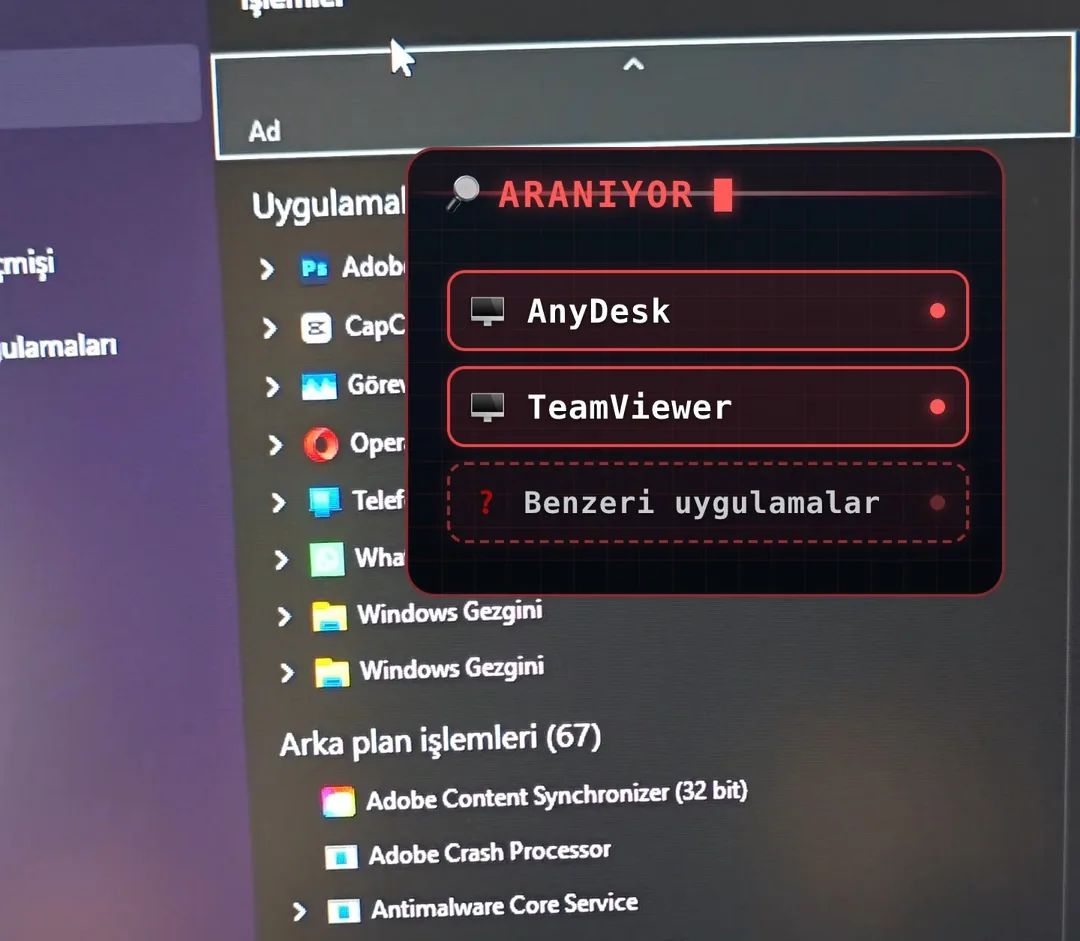
For someone to get into your computer remotely, a "remote access program" has to be running on it. The best-known ones are: AnyDesk, TeamViewer, RustDesk, UltraViewer, Chrome Remote Desktop, VNC (RealVNC, TightVNC, UltraVNC), Splashtop, LogMeIn, ScreenConnect, Supremo, Ammyy Admin, AeroAdmin, Radmin. In the steps below you will look for these names in the lists you open.
Seeing one of these programs does not by itself mean you were hacked. You may have installed it, or your workplace did. Ask yourself: did I install this, and do I know why? If the answer is no, be suspicious.
2. Windows: press three keys at once
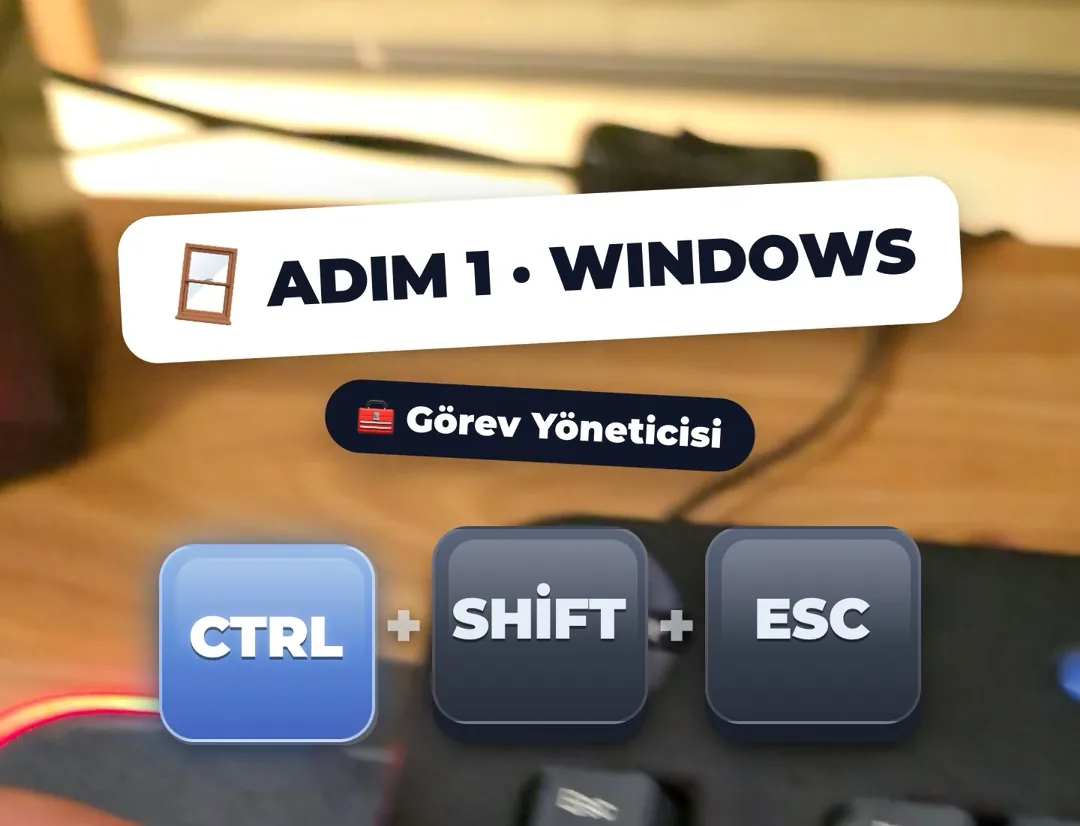
On your keyboard press Ctrl, Shift and Esc at the same time. Esc is in the top-left corner. Ctrl and Shift are at the bottom left. A window called "Task Manager" opens. If it opens tiny and almost empty, click "More details" at the bottom left.
On a Mac, skip steps 2, 3, 4 and 5 and go to step 6.
3. Windows: read the list from top to bottom
The window has two lists. "Apps" are the programs open right now. "Background processes" are the ones running without you seeing them. Read both from top to bottom. If you see one of the names from step 1, or a name you don't recognise at all, write it down.
Dozens of unfamiliar names in the list is normal. Most are parts of Windows itself. Don't delete anything. Just take notes; in step 10 we will ask what they are.
4. Windows: check what starts by itself when the computer turns on
In the same window click "Startup apps". On Windows 11 it is on the left; on Windows 10 it is a tab at the top called "Startup". This is the list of programs that start without asking every time you turn the computer on. If one of the names from step 1 is here and you did not install it, right-click it and choose "Disable".
5. Windows: check that Remote Desktop is off
Click the Start button and open "Settings". Go to "System", then "Remote Desktop". The switch there should be "Off". If it is on and you did not turn it on, turn it off.
If this page says something like "your edition of Windows doesn't support Remote Desktop", that is fine. It means it is already off.
6. Mac: open the Sharing settings
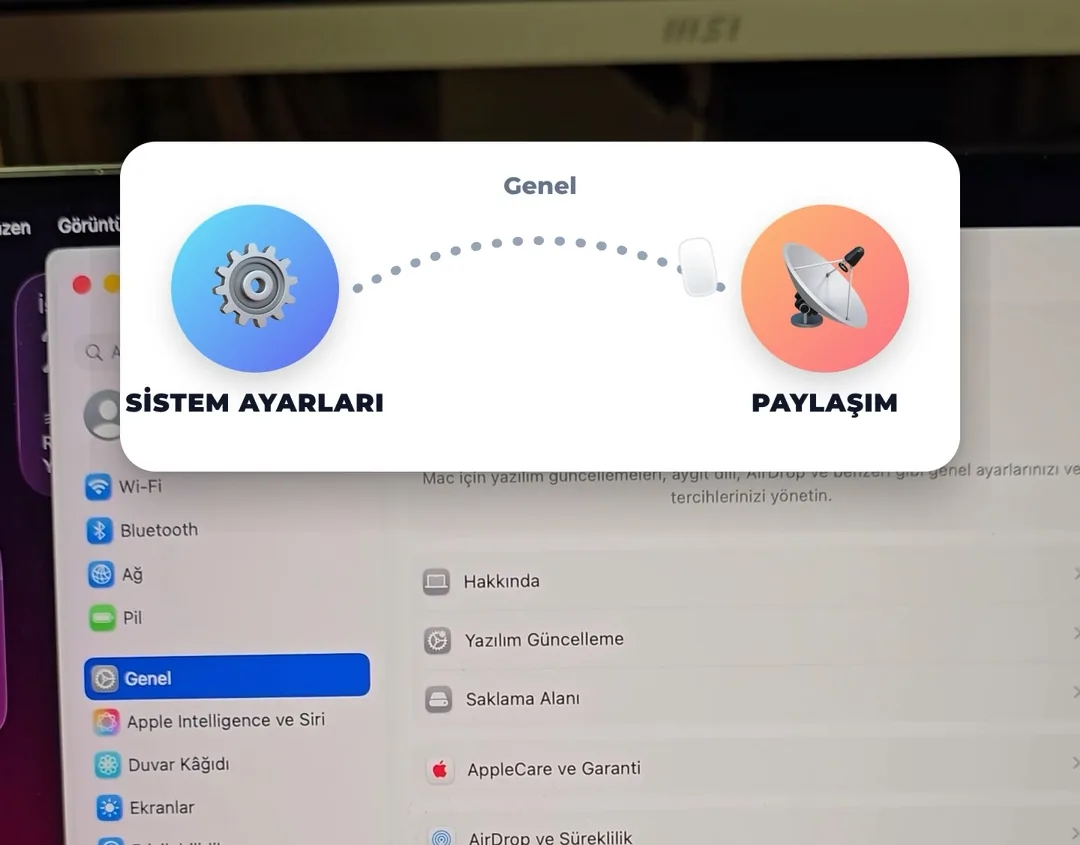
Click the apple icon in the top-left corner of the screen and open "System Settings". Click "General" in the list on the left. On the page that opens, click "Sharing".
On older Macs it is called "System Preferences" instead, and "Sharing" is right on the first screen.
7. Mac: make sure these three switches are all off
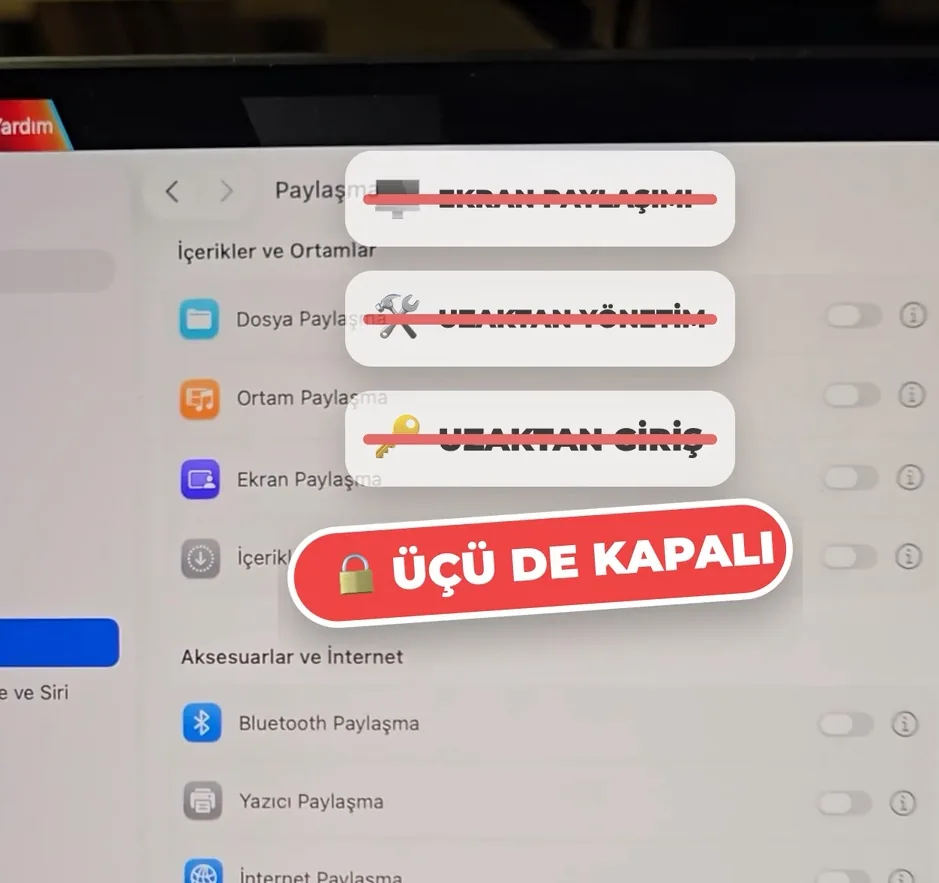
Find these three rows in the list: "Screen Sharing", "Remote Management" and "Remote Login". The switch next to each one should be off, meaning grey. If one is coloured and you did not turn it on, click it to turn it off.
If these are on, someone who knows your password can connect to your Mac from elsewhere. On a home computer there is no reason for them to be on.
8. Mac: who can see your screen?
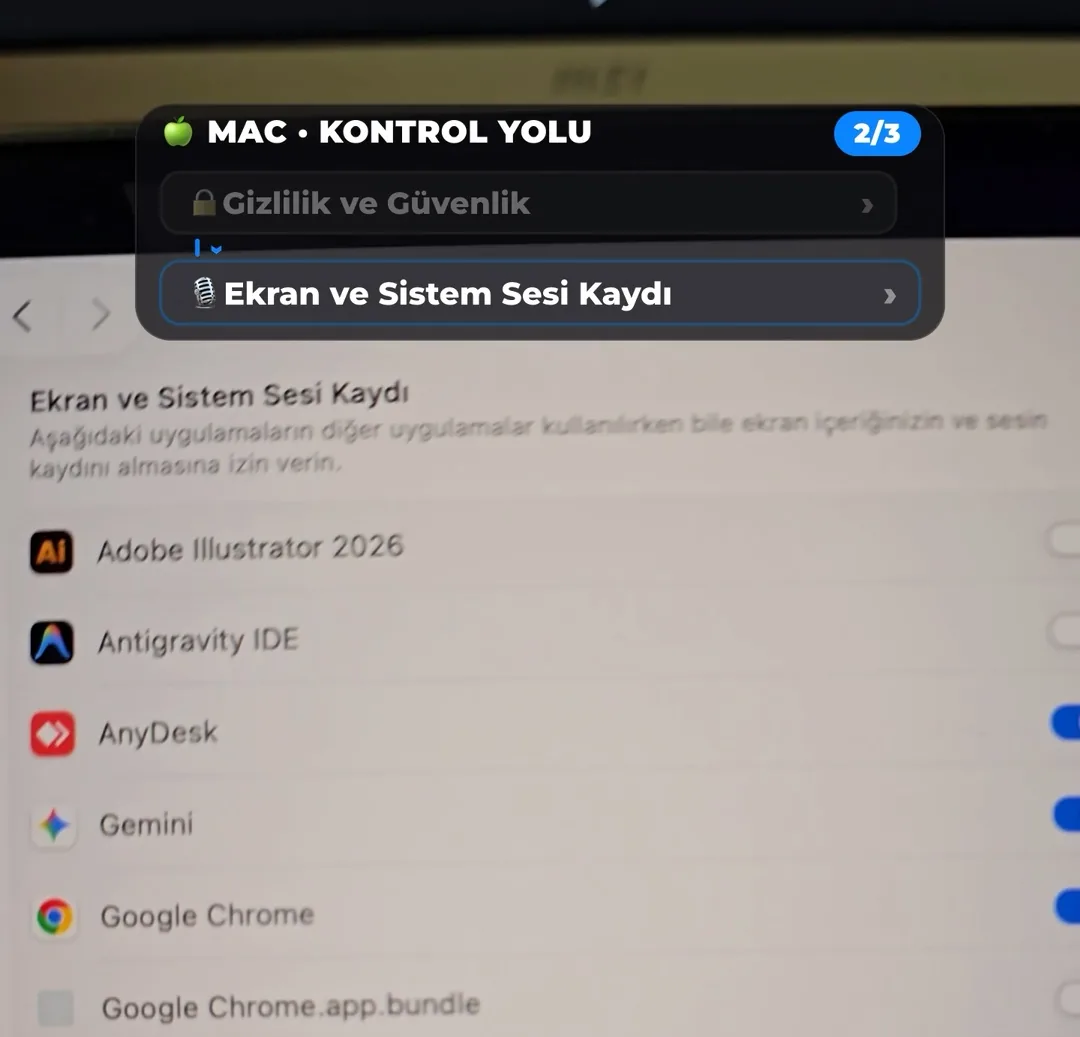
Still in System Settings, click "Privacy & Security" in the list on the left. Find the row "Screen & System Audio Recording" on the right and open it. Every program you see here can see whatever is on your screen. Read the list. If a program you don't recognise, or whose reason for being there you don't know, is switched on, switch it off.
It is normal for programs you make video calls with, such as Zoom, Teams or Google Chrome, to be here. On older versions this row is called "Screen Recording".
9. Mac: who can control your computer?
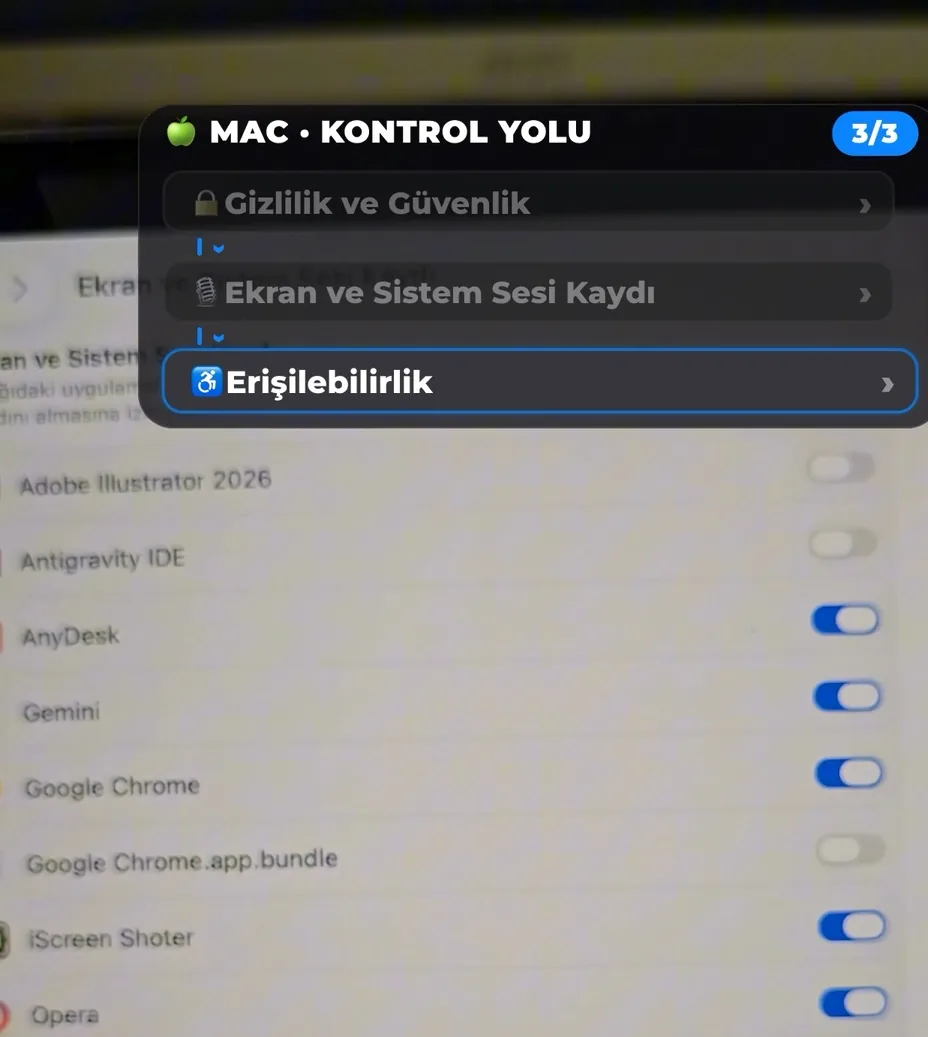
Go back one step and open the "Accessibility" row on the same page. Programs here can move the mouse and press keys for you. Then go back again and open "Input Monitoring". Programs here can read what you type. In both lists, switch off any program you don't recognise.
10. Ask an AI about any name you don't recognise
Send the names you wrote down, or a screenshot of the list, to ChatGPT, Claude or Gemini and paste the text below. It will tell you in plain language what each program is.
The programs below are running on my computer or have permission to see my screen. I am not a technical person. For each program, tell me briefly and in plain language:
1) What is this program for?
2) Does it let someone else connect to my computer remotely or watch my screen?
3) If I did not install it, can I safely close or uninstall it?
If you are not sure about a program, say "I'm not sure" instead of guessing.

Programs: [type the names here or attach the screenshot]
11. If you found something suspicious: cut the internet first
Turn off Wi-Fi or unplug the network cable. Without internet nobody can get into your computer remotely. That way the other side cannot watch you while you do the next steps.
12. Remove the program from the computer
On Windows: open "Settings", go to "Apps", then "Installed apps". On Windows 10 this page is called "Apps & features". Find the program, click the three dots next to it or the program itself, and choose "Uninstall". On Mac: open Finder, click "Applications" on the left, find the program and drag it to the Trash.
On a work computer the company may have installed these programs. Ask the IT department before removing them.
13. Change your passwords from a different device
Do this from your phone, not from that computer. In order: your email password first, then your bank, then your social media accounts. If you see a transaction you don't recognise in your bank account, call your bank right away. If you are still unsure, take the computer to a repair service you trust.
Tips
- If someone calls saying they are from your bank, a courier or tech support and asks you to install AnyDesk or TeamViewer, hang up. No bank asks for that.
- If the camera light is on when you are not using it, the mouse moves by itself, or unfamiliar windows open and close, run these checks right away.
- For a free virus scan on Windows: type "Windows Security" into Start and open it, go to "Virus & threat protection" and press "Quick scan".
- If a program you closed comes back after a restart, disable it in the list from step 4, then uninstall it as in step 12.
- You get a more accurate answer from the AI if you also say where the program is installed. On Windows, right-click the program in Task Manager and choose "Open file location".
- Repeat this check once a month. It takes five minutes.
Frequently asked
I saw AnyDesk or TeamViewer in the list. Have I been hacked?
Not by itself. These are normally used to get help with your computer. If you or your workplace installed it, that is fine. If you don't know who installed it, uninstall it and change your passwords from another device.
Nothing showed up. Am I definitely safe?
No, not definitely. These checks catch the most common ways. More hidden malware may not appear in these lists. If you are still uneasy, run a virus scan or show the computer to a service you trust.
Could an AI like the one in the video control my computer on its own?
Not on its own. A program has to be installed on your computer first. I installed that program on the computer in the video myself. That is why what matters most is knowing what is installed on your computer.
If I close or remove a program by mistake, will the computer break?
On a Mac, switching off a program's screen permission breaks nothing; the program will ask again if it needs it. On Windows, don't delete things you can't identify. Ask an AI first, as in step 10, then decide.