How do you let an AI assistant control your computer?
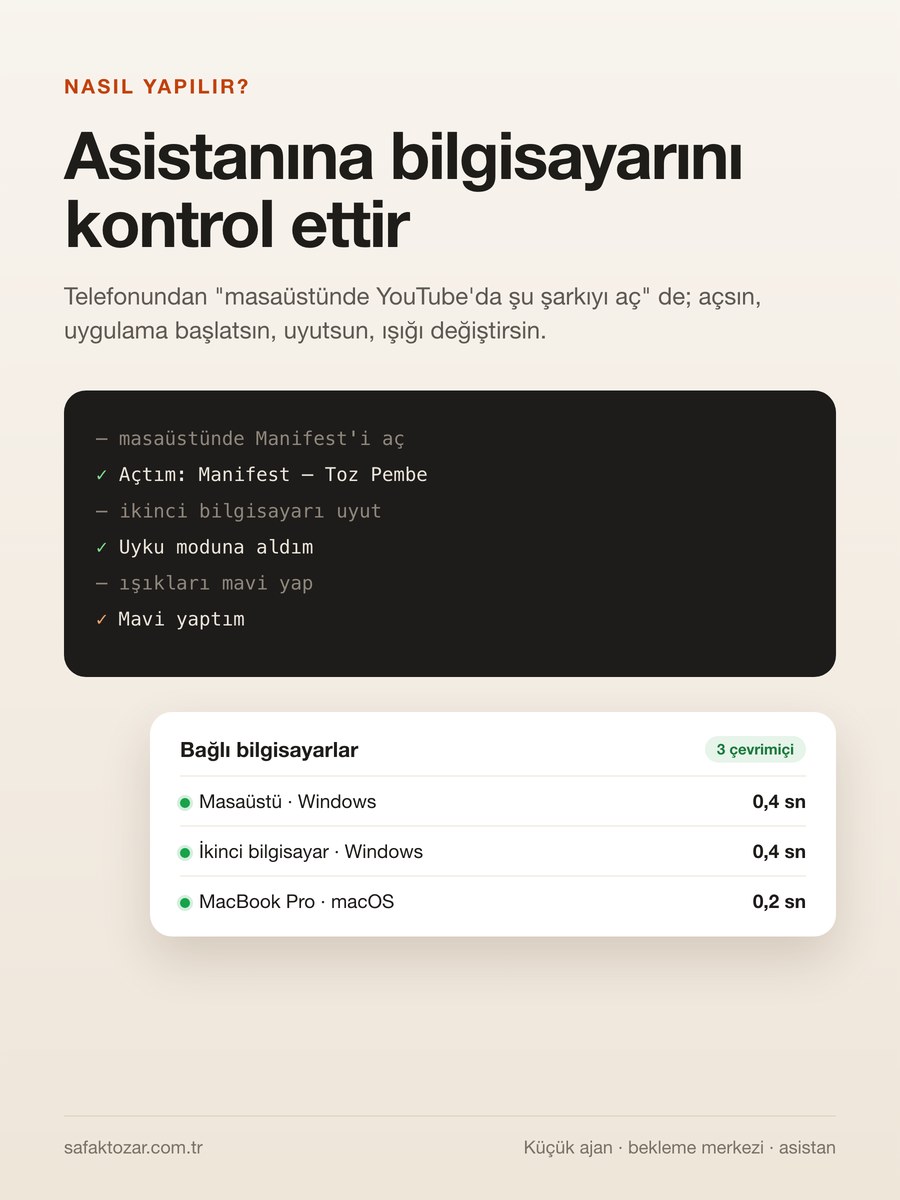
This system is part of my daily routine now. I start music on my desktop before I walk into the room, put the office PC to sleep from my phone, ask what's on the screen. It's three simple pieces: a tiny agent on each computer, a waiting hub on the server that delivers a command instantly, and one assistant tool. The agent only performs a fixed set of harmless actions — no arbitrary commands, no file deletion. This is an advanced guide; I set it up on my own computers. At the end there's a ready-made prompt to have Claude Code build the same thing. Note: this is for your own devices only; installing it on someone else's computer without consent is illegal.
What you'll need
- The Windows and/or Mac computers you want to control (the same agent runs on both)
- An AI assistant / chat backend you already run (mine is my own CRM assistant)
- A server for a small delivery service (one Node process is enough)
- The computers to be on and connected to the internet — they don't need to share a network
Step by step
1. Get the three pieces straight
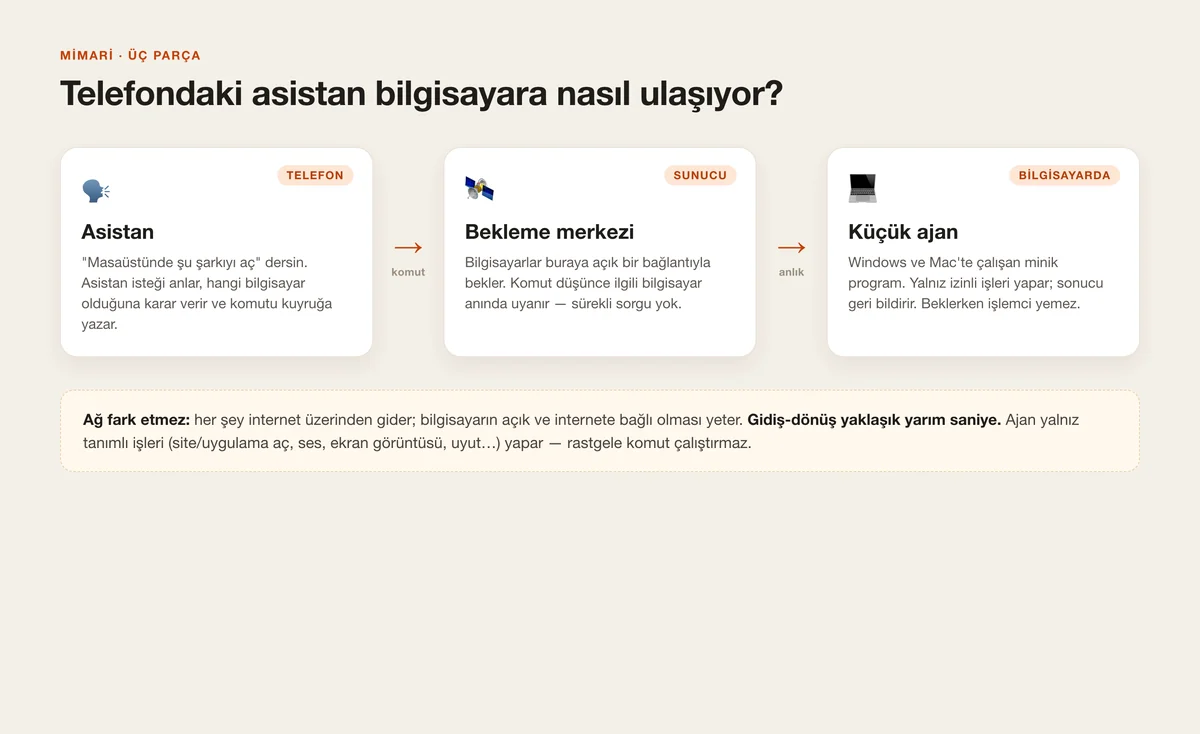
The assistant on the phone, a waiting hub on the server, and a small agent on each computer. The assistant understands your request, decides which computer you mean, and queues one low-level command (e.g. "open this URL"). The hub pushes it to that computer instantly over a connection the computers keep open. The agent runs it and reports back. The networks don't have to match; everything goes over the internet. The round trip I measured is about half a second.
2. The agent: a tiny program on each computer
A PowerShell script on Windows, a JXA (osascript) script on Mac. Both run in the background with no window and start on their own every time the computer boots. On Windows a small watchdog I put in the Startup folder launches the agent and restarts it within seconds if it dies — exactly what launchd does on the Mac. It uses no CPU while waiting: it opens one long connection to the hub and just sits there. A trap worth noting: if you wait in JXA by running a long shell command, osascript stays busy and drains the battery; I solved it by using the network layer directly, so idle CPU is near zero.
3. Why the hub is its own service
My first instinct was to have the agents connect straight to the site's PHP. But a long wait locks one PHP worker per computer, and a few computers could exhaust the site's pool. So I moved the long wait to a separate, lightweight service (a Node process for me). The assistant writes the command to the database and tells this service to "wake"; the service instantly returns that computer's waiting connection, the computer pulls the command and runs it. The site never slows down and the command arrives instantly.
4. Install: one command, no admin needed
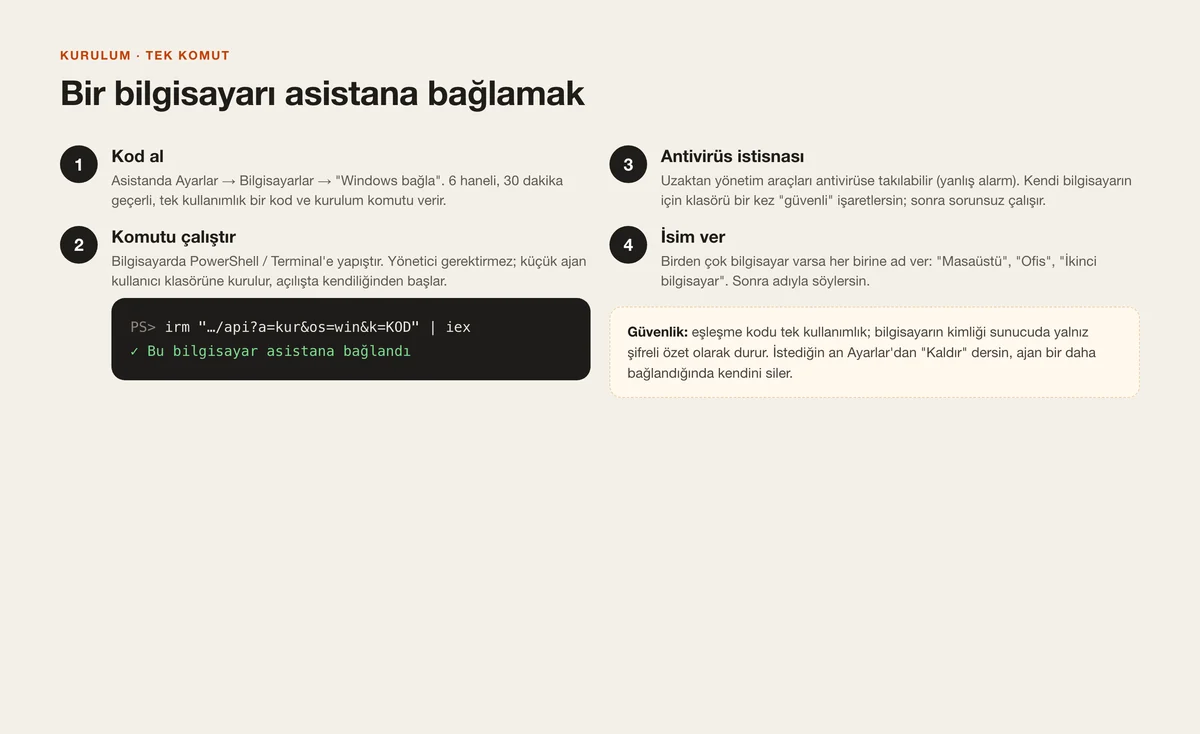
In the assistant's Settings → Computers I tap "Connect Windows" or "Connect Mac"; it gives me a 6-digit, one-time code valid for 30 minutes and an install command. I paste the command into the computer's terminal. The agent installs into the user folder, sets itself to start on boot, and connects to the server. It pairs once with the code; after that its identity is a per-device token, and that token is stored on the server only as an encrypted hash.
5. The antivirus trap: a false positive
On a real computer the agent didn't run at first: Windows Defender flagged the remote-control script as "malicious content" and blocked it. This is a common false positive — features like sending keystrokes and taking screenshots always look suspicious to antivirus. For my own computer the fix is to add the agent folder to Defender's exclusions: a one-time command run as administrator. I kept it a separate step because it needs admin rights. If you run another antivirus, mark the same folder as trusted there too.
6. Multiple computers: give them names
With two Windows machines and a Mac connected, "open on the desktop" sometimes ran on the wrong one, because the system picked whichever computer had signalled most recently. I fixed it: it matches by name first ("on the second computer", "at the office"), then by type word ("desktop/PC" → Windows, "MacBook/laptop" → Mac), otherwise the primary (first-paired) machine of that type. It never silently runs on a different computer: if the target is offline it asks "the ones online now are …, shall I do it there?" I give each computer a friendly name in Settings.
7. What I can say
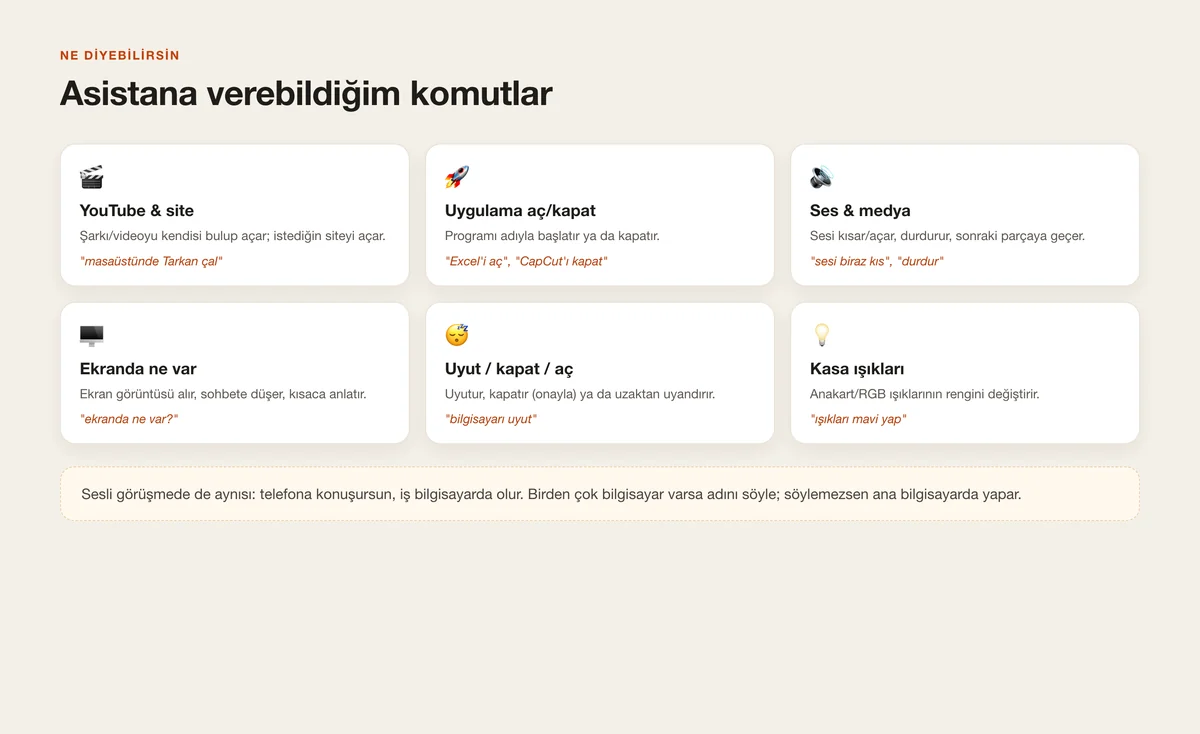
The ones I use daily: opening a song or video on YouTube (it finds it), opening a site, a Google search, opening and closing an app, volume and media keys (down/up, pause, next), "what's on the screen" (it takes a screenshot and summarises it), locking the screen, typing into the active window. An important distinction: "close CapCut" closes the app, while "shut down the computer" powers the device off and asks for confirmation first. The same works in a voice call — I speak to the phone, the action happens on the computer.
8. Sleep, shut down and wake remotely
"Put the computer to sleep" sleeps it immediately; "shut down" powers it off but first asks "unsaved work will close, are you sure?"; the result is sent before it powers off so the assistant can say "done". Remote wake was the hardest part. I turn a sleeping/off computer on with a "wake packet" that another computer, awake on the same home network, puts on the wire. Two traps: this packet almost never works over Wi-Fi and needs a wired (Ethernet) connection; and it must go directly to the target's address (unicast), not broadcast, or the sleeping card doesn't hear it.
9. Security: what the agent will and won't do
This system gives remote access to your computer, so I set the limits from the start. The agent only performs the fixed actions above: running arbitrary commands, deleting files or downloading programs simply don't exist in it. Every request's input is validated (only valid web addresses, only allowed keys, and so on). The pairing code is one-time and short-lived; the device token is stored on the server as an encrypted hash, not plain text. When I tap "Remove" on a computer in Settings, the agent gets an unauthorised response on its next connection and deletes itself. And most important: this is for your own devices only — installing it on someone else's computer without consent is a crime.
10. Keep it fast and light
While waiting the agent uses no CPU, so the load is near zero as the computer sits on. When a command arrives the round trip is about half a second. In voice calls I added one more speed-up: if every action in a turn is a computer command and they all succeeded, I skip the second background thinking round and send the tool's short result straight to the voice — so "made it blue" comes back a second sooner. The only remaining lag on light commands is that I launch the lighting tool as a separate program each time; moving it to a persistent connection makes it faster still.
11. Have the same thing built
Build me a system that lets my phone assistant control my own computers (Windows PCs and a Mac). Work step by step, show me every file before you apply it, and keep it safe: the agent must ONLY run a fixed allow-list of harmless actions, never arbitrary commands, and I must be able to remove any computer instantly.

Architecture (three pieces)
- A tiny agent that runs on each computer. Windows: a PowerShell script that starts on login from the Startup folder via a watchdog .vbs (restarts itself if it dies, ~0% CPU while idle). Mac: a JXA script (osascript) under a LaunchAgent with KeepAlive. Both self-update from the server and delete themselves when I remove the device.
- A small "waiting hub" (a Node service on the server, loopback only, behind a token) that holds a long-poll from each agent, so a command reaches the computer in well under a second without the agents busy-polling. Don't tie up a PHP-FPM worker for the wait.
- My assistant backend: a `computer` tool that turns a natural request into one low-level action, queues it, wakes the hub, waits a few seconds for the result.

Pairing and security
- No login on the agent endpoints; identity is a per-device token created from a one-time 6-digit code (30 min). Store only a SHA-256 hash of the token on the server. A removed device returns 401 on its next poll and self-deletes.
- The agent executes ONLY a fixed set: open URL / YouTube (server finds the first video) / Google search, open or close an app (by name/known URI, graceful close then force), media & volume keys, screenshot, lock screen, type text, power (sleep / shut down / restart, result sent before acting), Wake-on-LAN relay, RGB via OpenRGB's SDK. No shell, no file delete, no eval. Validate every argument.
- Power off / restart needs an explicit confirmation from me; sleep doesn't.

Behaviour details that cost me time
- Windows Defender flags remote-control tooling as malicious (AMSI). Add an admin one-liner that puts the agent folder in Defender's exclusions and (re)starts the watchdog.
- Multiple computers: pick by name first (I name them "Desktop", "Office"), then by type word, else the primary (first paired) machine of that type. Never silently run on a different computer; if the target is offline, tell me which others are online and ask.
- Wake-on-LAN over Wi-Fi usually fails (the card sleeps); it works reliably over Ethernet, and the magic packet must be UNICAST to the target IP (relay sends it from an awake computer on the same LAN), not just broadcast.
- In the live voice mode, add "computer" to the delegation list too, and skip the second model round when every tool call in a turn is a computer action that plainly succeeded — the tool's short result goes straight to the voice.

Give me the install command, the one-time admin exception step, and a settings screen to pair, rename and remove computers.
Tips
- Don't skip the antivirus exception on first install; the agent silently never runs and it takes time to find out why.
- Restrict the agent to an allow-list only. If you add a "run any command" door for convenience, that door will one day be used against you.
- Give the computers human names ("Desktop", "Office"). With several devices it's the easiest way to address the right one.
- Test remote wake over a wired connection and send the wake packet directly to the target; don't waste time on Wi-Fi.
- Gate irreversible actions like shutdown behind confirmation; leave sleep free. That's the balance in daily use.
Frequently asked
Does it work while my computer is off?
For control the computer must be on and online. I can only wake a sleeping or off computer remotely if another device is awake on the same home network and the target is on a wired connection (not Wi-Fi).
Is it safe? Can someone get into my computer?
The agent only performs a fixed set of harmless actions; running arbitrary commands or deleting files simply isn't in it. Pairing uses a one-time code, the device identity is stored as an encrypted hash, and you can remove it any time. Still, this is remote access to your computer; install it only on your own devices and keep the allow-list narrow.
Does it run on both Windows and Mac?
Yes. The same idea on both: a PowerShell agent on Windows, a JXA agent on Mac. The commands are the same; each carries them out its own way (opening an app, taking a screenshot, and so on).
Voice or text?
Both. I can type "open Excel on the desktop", or say the same thing in a voice call — the action happens on the computer and the assistant tells me the result in one sentence.
The RGB lights in the case too?
Lights connected to the motherboard I can control with a free tool called OpenRGB: "make the lights red", "turn them off". Strips wired only to their own remote, with no cable to the computer, can't be changed by software.
How fast is it?
When I issue a command the round trip is about half a second. Because the agent uses no CPU while waiting, there's no noticeable load as the computer sits idle.