Build your own AnyDesk with AI: all your computers on one screen
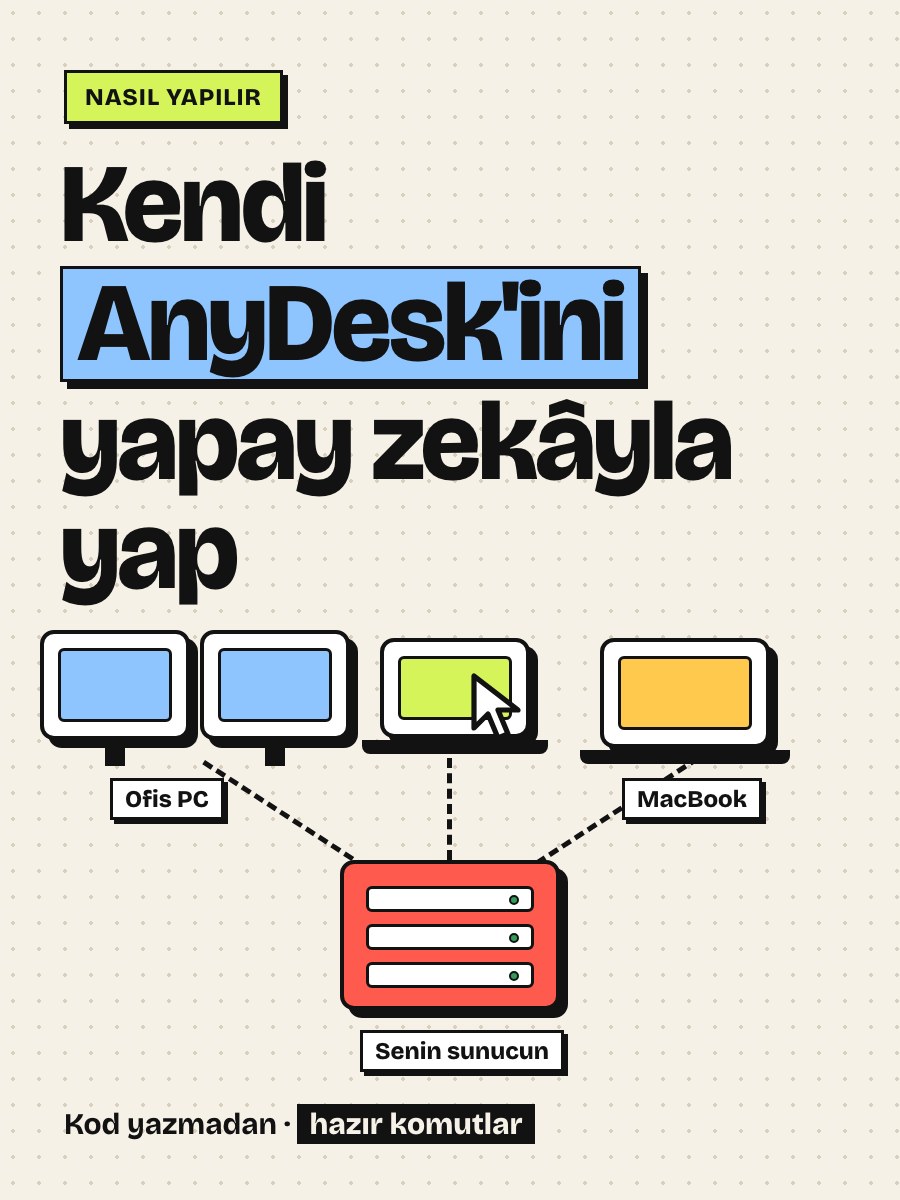
My office PC, my laptop at home and my MacBook are now on one screen. Whichever I click, its screen is in front of me: I control it with mouse and keyboard, send files, and paste on one computer what I copied on another. It's a program like AnyDesk, but one I made myself. I didn't write a single line of code; Claude Code wrote all of it, in one day. In this guide I show how to have the same thing built on your own server. Every step has a ready prompt to paste, so go in order. Stop at step 7 and you already have a working remote desktop; after that come files, clipboard, a status screen and automatic updates. This is only for your own computers; installing it on someone else's computer without their knowledge is a crime.
What you'll need
- Claude Code. It writes the program for you. It needs a paid Claude subscription.
- A Linux server (Ubuntu) for a few dollars a month. The smallest plan is enough.
- A domain name. Not required, but I recommend it: your panel opens at a locked (https) address like screen.yourdomain.com.
- The computers you want to manage: Windows 10/11 or Mac. Nothing extra gets installed on Windows.
- A browser to open the panel: Chrome or Edge.
Step by step
1. Understand how it works first
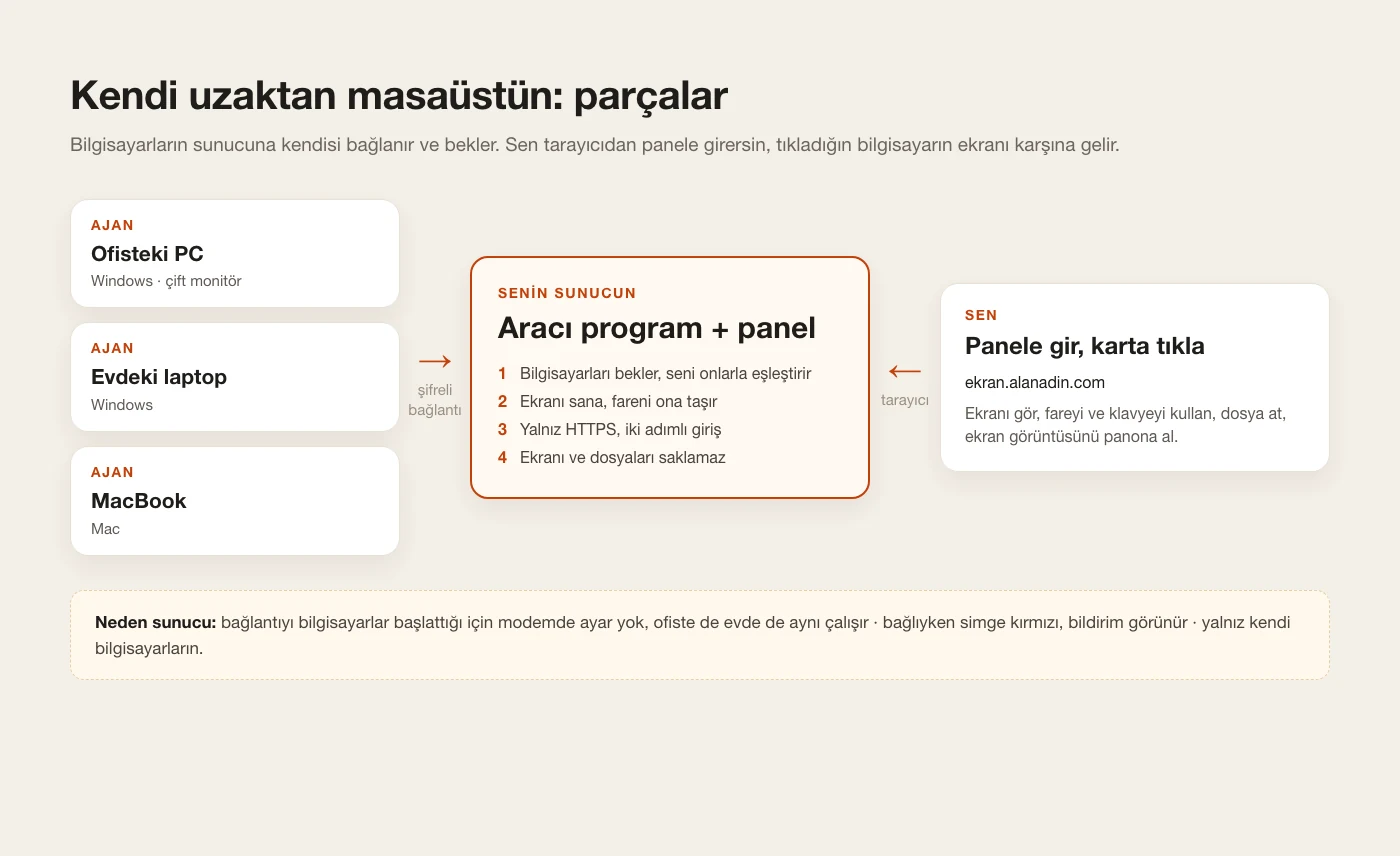
You install a small program on every computer you want to manage; it's called the agent. When the agent starts, it connects to your server and waits. You open the panel on your server in a browser and see your online computers as cards. Click one and the server brings the two of you together: that computer's screen comes to you, your mouse and keyboard go to it. Because the computers start the connection themselves, you don't need to touch your router; it works the same at the office, at home or in a café. Claude Code writes all of these parts. Your job is to rent the server, paste the prompts and test.
2. Install Claude Code
Install Claude Code from claude.com/product/claude-code and sign in with your Claude account. Create an empty folder called RemoteScreen on your desktop and start Claude Code in that folder. You'll paste the prompts below there, in order; each one has a Copy button. Replace the parts in square brackets with your own details. Don't move on until you've seen a step work.
If Claude asks for permission before doing something, read it. If you don't understand, don't approve; type: "What does this do? Explain it simply."
3. Rent a server
Rent the smallest Linux server from a provider like Hetzner or DigitalOcean; it's a few dollars a month. Choose Ubuntu as the operating system. While creating the server, the provider will ask for an SSH key: first give Claude the prompt below and it will give you the text to paste. Once the server is up, note the IP address shown in the provider's panel; Claude will ask for it in a later step.
Log in to the server with a key, not a password. The private part of the key never leaves your computer; never send it to anyone.
Create an SSH key on my computer. If one already exists, don't make a new one, use the existing one; don't overwrite anything. Show me the public part (.pub) that I'll paste into my server provider's panel, and tell me in one sentence where to paste it. Never print the private key anywhere, not even to me.
4. Point your domain (optional)
If you want your panel at an address like screen.yourdomain.com with the lock icon (https), you need a domain. In your domain provider's panel, open the DNS settings and add a new A record: name "screen", value your server's IP address. It takes a few minutes to a few hours to work. If you don't have a domain, skip this step; Claude will suggest another way in the next step.
5. Have the server and panel built
This prompt sets up the relay program your computers will connect to and the panel you'll log in to. Put your server's IP address and panel address in the square brackets. Claude will connect to the server and set everything up, telling you what it's about to do before changing anything. When it's done, open the panel address in your browser and log in. There are no computers on the screen yet; that's exactly right.
Your panel is on the internet, so don't delete the security lines. Two-factor authentication keeps everyone out even if your password is stolen.
We're building my own remote desktop system: like AnyDesk, but only for my own computers. In this step, set up the server side only. Go step by step and tell me what you're about to do before you change anything on the server.

Server: Ubuntu, IP address [SERVER IP ADDRESS]. You can connect as root with my SSH key.
Panel address: [screen.yourdomain.com]. If I don't have a domain, suggest the easiest way to get HTTPS; never use plain http.

What to build:
1. Relay program, in Node.js. The agents on my computers will connect to it over encrypted WebSocket (wss) and wait. When I click a computer in the panel, pair me with it: its screen images come to me, my mouse and keyboard go to it. Never write screen images or files to disk, only pass them through.
2. Panel: a web page served at the same address. A login screen; cards for the connected computers (name, online or offline, last seen); click a card for a full-screen view.
3. Security (don't skip any of these):
- HTTPS only. Get and renew the certificate automatically with Caddy.
- Panel login with a password plus a 6-digit code from the authenticator app on my phone (two-factor authentication).
- After 5 wrong attempts, lock that IP address for 15 minutes. Log every login.
- Every computer gets its own long, random key. I can revoke a computer from the panel with one click.
- Only ports 22, 80 and 443 stay open in the firewall.
4. The program starts by itself when the server boots and restarts if it crashes (systemd).

Show me my panel password once so I can write it down; never store it in plain text in any file. When you're done, open the panel address and confirm I can log in and see the "no computers yet" screen. Explain simply how to add the two-factor code to my phone.
6. Have the Windows agent written
Now you have the program for your computers written. This prompt gets Claude to build both the program and an "Add computer" button in your panel. The program is compiled with tools that already come with Windows, so you don't need to install anything. Some details in the prompt come from problems I ran into: without the task priority setting, connections waited for seconds, and antivirus locked the new program for a while. Don't delete them.
The icon and the "remotely connected" notification are always visible on purpose. This program is only for your own computers; installing it on someone else's without their knowledge is a crime.
Now write the program that goes on my Windows computers, the agent. It must run on Windows 10 and 11 without installing anything extra: write it in C# and have it compiled on the computer itself with the .NET Framework compiler that already ships with Windows (csc.exe).

The agent should:
1. On start, connect to my server over wss and prove who it is with its own key. If the connection drops, retry every few seconds. Never open a port on the computer.
2. Send the screen: all monitors (I have two) and the mouse cursor. Split the screen into tiles and send only the tiles that changed, as JPEG; tiles that stop changing get refreshed in sharp quality shortly after. Add a Fast / Balanced / Sharp quality choice in the panel. If the computer is on the lock screen, say so in the panel.
3. Apply my mouse and keyboard: click, right-click, wheel, drag, accented characters, shortcuts like Ctrl+C / Ctrl+V. If the connection drops, release any keys that are still held down.
4. Never run hidden: keep an icon next to the clock. While someone is connected, the icon turns red and a "Remotely connected right now" notification appears in the bottom-right corner. Right-clicking the icon shows "Disconnect" and "Quit".
5. Start automatically at sign-in: create a Scheduled Task that runs with administrator rights. Set the task priority to 4; the default 7 runs the program at "below normal" priority and connections wait for seconds.
6. Install: put an "Add computer" button in my panel. It gives me a one-line command to paste into an administrator PowerShell on Windows. The command downloads the package from my server, compiles it, installs it and adds the computer to the panel. The invite code inside the command is valid for 15 minutes and works only once. Use only plain English characters in the install script so it doesn't break on non-English Windows.
7. Antivirus can lock a freshly compiled file for a while: when the installer moves the file into place, it should wait up to 90 seconds. If that fails, the old version keeps running.
8. Keep everything in C:\RemoteScreen and write what happens to a log file.

When you're done, explain simply, step by step, where I get the "Add computer" command and where on Windows I paste it.
7. Add your first computer and test it
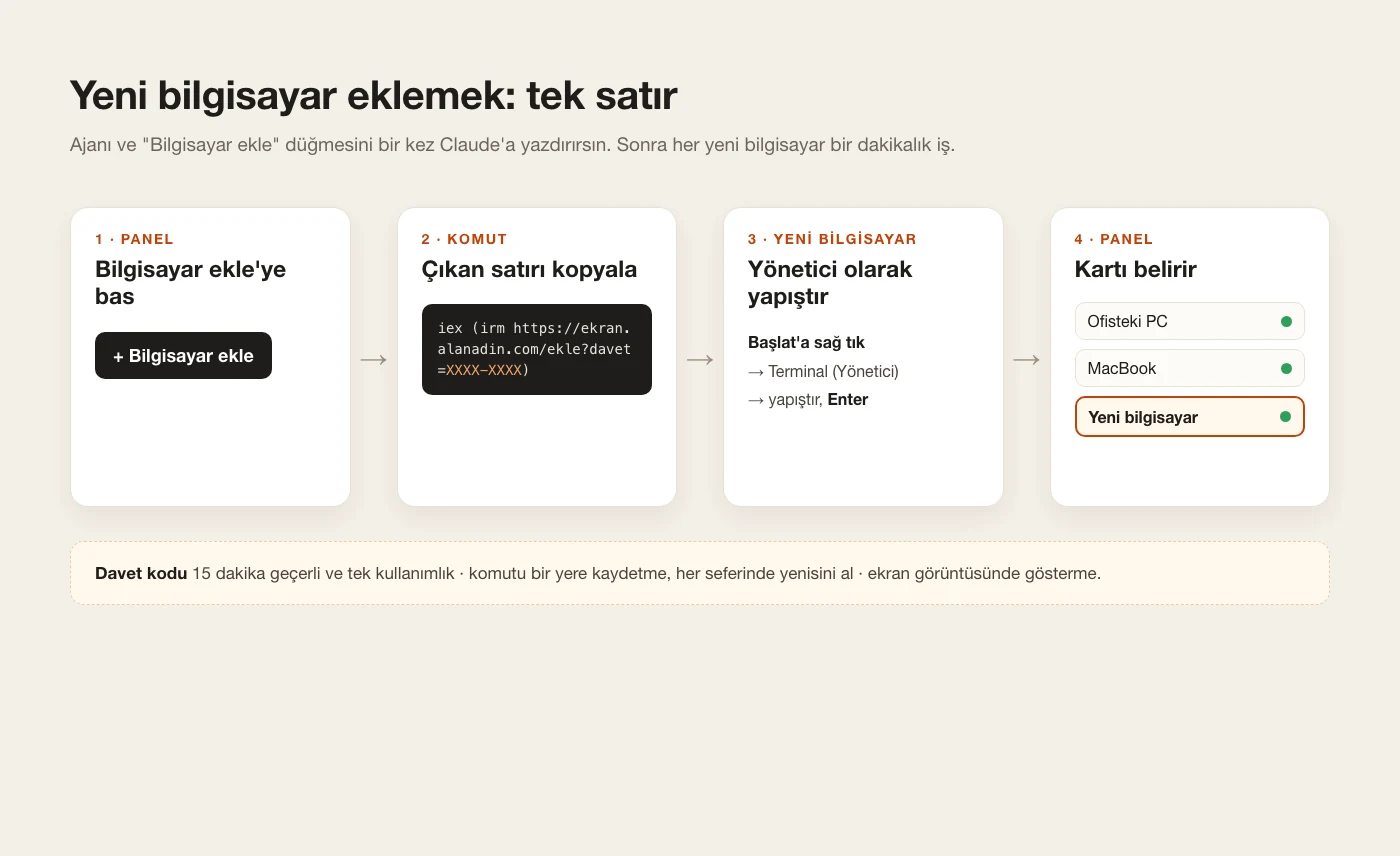
Press "Add computer" in the panel and copy the command it shows. On the Windows computer you want to add, right-click the Start button and choose Terminal (Admin) or Windows PowerShell (Admin). Paste the command and press Enter. A few minutes later the computer's card appears in your panel. Click it: if you see the screen, move the mouse, open Notepad and type something with accented characters. Meanwhile, the icon next to the clock on that computer should be red.
8. Add your Mac too (optional)
If you have a Mac, have the Mac version of the same agent written. After installing, the Mac will ask for Screen Recording and Accessibility permission in System Settings. Grant both to this program; otherwise the screen won't show or the mouse won't work.
A MacBook sleeps when you close the lid. You can't connect to a sleeping computer remotely; the same goes for Windows.
Write the Mac version of the same agent. Use Swift, no outside libraries.
- Capture the screen with ScreenCaptureKit; send only the tiles that changed, like on Windows.
- Apply my mouse and keyboard, with accented characters typed correctly.
- Ask for the Screen Recording and Accessibility permissions; show the name of any missing permission on the menu bar icon. Keep the code signature stable so the permissions survive a rebuild.
- Put an icon in the menu bar. While someone is connected, the icon changes and a notification appears.
- Start automatically at login. Don't let the Mac sleep while it's plugged in.
- The panel's "Add computer" button should also give me a one-line command for the Mac, to paste into Terminal.
When you're done, explain simply which permission I grant where.
9. Get files, send files
Give this prompt to download a file left on the remote computer, send files to it from your own computer, and right-click on Windows to "send to this computer". No more sending files to yourself on WhatsApp.
Files pass through your server, so the speed depends on the server's and both sides' internet speed. Be patient with big files.
Add file features:
1. In the panel, let me browse the folders of the computer I'm connected to and download any file to my own computer. Show percentage, speed and time left while downloading.
2. When I drag a file from my own computer onto the remote screen or onto a card in the panel, it goes to that computer's Downloads folder. Show progress while sending too.
3. On Windows, right-clicking a file shows a "Send to computer" menu listing the computers in my panel. When I select several files, they all go in one go.
4. When a file arrives, show a notification on that computer; clicking it opens the folder.
Never store files on the server, only pass them through. When you're done, tell me how to test each one.
10. Copy a screenshot to your clipboard
To grab the remote screen and paste it into a message or document on your own computer. You press the button, the image lands on your clipboard, and Ctrl+V pastes it wherever you want.
Add a "Screenshot" button to the panel. It captures the screen of the computer I'm connected to at full resolution and copies it to my own computer's clipboard, so I can go anywhere and paste it with Ctrl+V (Cmd+V on a Mac). Put the same button on the cards in the panel so I can grab one without connecting. Add a "Save as file" option too.
11. Shared clipboard
To paste with Ctrl+V on one computer the text or image you copied on another. Copy on the Mac, paste on Windows.
Everything you copy goes to your other computers too. If you're on a computer other people use, or you're copying a password, turn the shared clipboard off in the panel.
Add a shared clipboard: when I copy text or an image on one of my computers, it lands on the clipboard of the others too, so Ctrl+V pastes it there.
- Add an on/off switch in the panel.
- Don't send copies that password managers mark as "concealed".
- The same content must not bounce between computers in an endless loop.
- On Windows, don't poll the clipboard; use the Windows feature that notifies you when the clipboard changes.
When you're done, tell me to test it by copying on the Mac and pasting on Windows.
12. Status screen
To see at a glance which computer's disk is almost full and which one is struggling. Warnings show up on the card. The last sentence of the prompt comes from a problem I had: when this information was recomputed every time, the connection to my slow laptop kept dropping.
Add a status screen to the panel. For each computer: CPU and memory use (with a small chart of the last few minutes), free disk space, how long it has been on, and the 5 programs using the most resources. If a disk is almost full, show a yellow warning on the card; if it's nearly out, a red one. Have the agent collect this in the background every few seconds instead of recomputing it every time the panel asks, otherwise requests pile up on a slow computer and the connection drops.
13. Automatic updates
So you don't have to install every new feature on each computer one by one. You publish once and they all update themselves. If something goes wrong, they roll back to the old version on their own.
Don't skip the signing part. Even if your server gets hacked one day, an unsigned package can't be installed on any of your computers. Keep a backup of the private key; if you lose it, you can't publish new versions.
Add automatic updates: I put a new version of the agent on my server once, and every computer updates itself.
- Sign the packages with a private key that stays on my own computer. The agent must never install a package whose signature doesn't match. The private key never goes to the server.
- The agent checks for a new version once an hour. It doesn't update while someone is connected.
- If the new version doesn't start and answer within 90 seconds, it rolls back to the old one.
Give me a single command to publish a new version, and tell me how to back up the private key.
14. Adding a computer is now one line
From now on, adding a computer takes a minute: press Add computer in the panel, copy the command and paste it into an administrator PowerShell on the new computer. The invite code is valid for 15 minutes and works once; don't save the command anywhere, get a fresh one each time.
15. Say what isn't working
If something doesn't work, tell Claude what you see in plain words: which computer, what you did, what you expected, what happened. The clearer you are, the faster it gets fixed. You can use the template below; ready-made sentences for common problems are in the tips section.
[DESCRIBE THE PROBLEM, e.g. My office computer sometimes shows as offline in the panel]. First look at the agent's and the server's logs, find the cause and explain it to me simply. Then fix it. After the fix, tell me what to test.
16. Turning it off and undoing it
To turn a computer off temporarily, right-click the icon next to the clock and press Quit. If you revoke a computer in the panel, it can never connect again. To remove the program from a computer completely, give this prompt.
Prepare a command that completely removes the agent from this computer: [COMPUTER NAME]. It deletes the program, the scheduled task, the right-click menu, the shortcuts and its folder, and revokes the computer in the panel. It must not touch my own files. List what will be deleted before deleting and get my approval.
Tips
- Don't ask for everything at once. Don't move on until a step works; that's how I did it too.
- If the screen lags, type: "The screen is slow. Measure where the image waits: in the agent, on the server or in the browser? Find the bottleneck."
- If a computer sometimes shows as offline, type: "This computer sometimes shows as offline. Check whether the scheduled task runs, whether its priority is 4, and whether the log shows disconnects."
- If accented characters come out wrong, type: "Accented characters are typed wrong. Use Unicode input instead of key codes."
- Don't put the computer to sleep; lock it with Win+L. The screens turn off and the connection stays up. A sleeping computer can't be reached remotely.
- If you're filming or sharing screenshots, don't show your panel address, invite command or password.
Frequently asked
Do I need to know how to code?
No. I didn't write a single line of code either. I wrote what I wanted in plain words, Claude wrote it, I tested it and said what didn't work. The prompts in this guide work the same way.
How much does it cost?
The server is a few dollars a month. Claude Code needs a paid Claude subscription. If you use a domain, there's its yearly fee. You don't pay for a license for the program itself.
Can the server see my screen?
Screen images and files pass through your server, but the prompt tells it never to write them to disk. Everything is encrypted with HTTPS along the way. The server is yours, so no other company sits in the middle. If you want it even tighter, ask Claude for end-to-end encryption; then not even the server can see the content.
Can it replace AnyDesk?
For your own computers it does most of the job: seeing the screen, controlling it, sending files, sharing the clipboard. It isn't designed for things like remote support for customers; ready-made programs suit that better.
Can I wake a sleeping computer remotely?
No. A sleeping computer's network goes off too, so the agent can't reach the server. Don't put it to sleep; lock it with Win+L.
Can I connect from my phone?
The panel opens in a browser, so you can see the screen on your phone too. If you want touch control of the mouse, ask Claude for it separately.
Can I install it on someone else's computer?
Only with the owner's permission and knowledge. That's why the program always shows its icon and the "remotely connected" notification. Installing it without permission is a crime.
The video is coming very soon
My video using this program on screen is coming to Instagram very soon. I'll add it here once it's out.