How well does your AI know you? How to make a digital life map
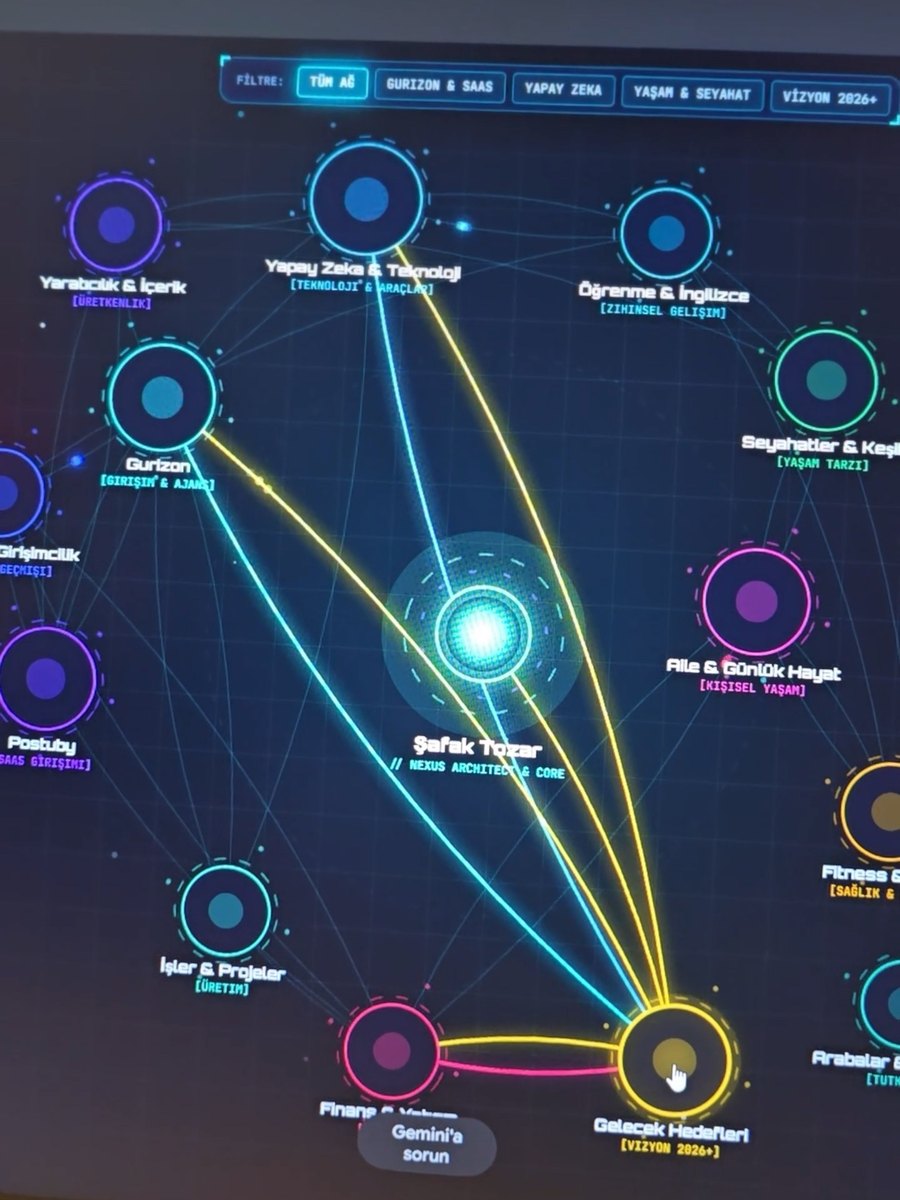
In the video I asked Gemini one question: what do you know about me? I asked for the answer not as a list but as an animated map. I was in the centre. Around me were my projects, trips, family and goals, with lines connecting them all. Clicking a circle opened the details of that topic. The most surprising part was that it had not forgotten even old things. You can do the same in five minutes. The prompt I used was specific to me. I rewrote the version below so anyone can use it: the AI picks the sections itself based on what it knows about you.
What you'll need
- An AI account you have been using for a while. I used Gemini; you can sign in for free with your Google account.
- A computer. It works on a phone too, but the map looks far better on a big screen.
- Canvas mode. In Gemini it sits among the tools under the message box; the map only appears when this mode is on.
- 5 minutes.
Step by step
1. Open the AI that knows you best
This map is drawn from what the AI has learned about you in your past conversations. So open whichever one you talk to most. I use Gemini: go to gemini.google.com and sign in with the Google account you always use.
A brand-new account doesn't know you. In that case you will fill in the "EXTRA INFO" line in step 4 yourself.
2. First, see what it knows
Start a new chat and type: "What do you know about me? List it point by point." Read the list. If it is long, your map will be full. If it is very short, or it says it doesn't know, that is fine; you will add what is missing in step 4.
If it remembers nothing, the option to use past chats may be turned off in settings. Check the settings page; the name of this option varies between versions.
3. Turn on Canvas mode (don't skip this step)
You need to turn on Canvas mode BEFORE pasting the prompt. Look at the tools under the message box and click "Canvas". Check that it is selected, then continue. Canvas lets Gemini produce a working page instead of plain text. The map opens inside that page.
If you send it with Canvas off, you get a long text instead of a map. If that happens, start a new chat, select Canvas and send the prompt again.
4. Copy the prompt, paste it, send it
Press the copy button in the corner of the box below and paste it into Gemini. Before sending, look at the two lines with square brackets: "EXTRA INFO" and "LEAVE OUT". To use them, replace what is inside the brackets with your own sentence. Otherwise delete those two lines. Check that Canvas is still selected, then send.
If there is a topic you don't want on the map, such as money, family or health, write it on the "LEAVE OUT" line.
Using everything you have learned about me so far (our past chats and anything saved in your memory), create a comprehensive, animated and clickable "digital life map" that tells my story. Produce the output as a single interactive page (Canvas). All text on the page should be in English.

This should not be a classic biography or a text summary. Tell my life, work, projects, interests, habits, goals, experiences and turning points inside one living visual world.

DO THIS FIRST
List to yourself what you know about me and decide the map's sections YOURSELF based on that. Do not add a section you have no information for. Do not make up anything you don't know. Mark anything you are unsure about as "uncertain". Keep names, dates, companies and projects exactly as you know them.

EXTRA INFO (optional, delete this line if you leave it empty): [Things that may not be in your memory but that I want on the map: my job, the cities I've lived in, my projects, my goals...]
LEAVE OUT (optional, delete this line if you leave it empty): [Topics I don't want on the map, for example finances or family]

VISUAL CONCEPT
Put one main point representing me at the centre of the screen. Create animated regions branching out from it in different directions. The sections depend on me. Example headings:
- Career & Work
- Jobs & Projects (give every company, brand or project that matters to me its own section)
- Technology & Tools I Use
- Education & Learning
- Finance & Investing
- Travel
- Family & Daily Life
- Sport & Health
- Hobbies & Interests
- Creativity & Making
- Future Goals
- Important changes from past to present
Each section should have its own small visual world.

ANIMATION
The map must not be static. It should keep moving like a living system.
- The career line moves from the past towards today.
- Old projects appear and then connect to newer ones.
- Trips light up as glowing routes.
- In the learning area, particles of knowledge join to form new connections.
- Future goals appear as unfinished paths reaching forward.
- Related areas are connected by lines (for example an interest → a job → a project → a new goal).

TIMELINE
Include a timeline inside the map that flows past → present → future. Show important turning points in chronological order as far as possible.

INTERACTION
The map should be clickable. When I click a section, the camera moves in and a detail panel opens: everything you know about that topic, sub-headings, and the other sections it connects to. Put filter buttons at the top that group the sections. When the panel closes, the camera slowly pulls back so all the pieces are seen as parts of one system.

VISUAL LANGUAGE
A premium, futuristic, cinematic, dark digital interface. It should feel like a mix between a tech company's vision dashboard and a skill tree or world map from a video game. Minimal but detailed. No unnecessary icons, emoji or decoration. Every piece of information should have a visual counterpart.

NARRATIVE
This should describe me not only through "what I do" but through how I have changed over time and which areas are connected. The core idea: "This is the digital map of a person's life and inner world."

CENTRE
Write my first and last name on the central point. If you don't know my name, ask me before you start. Under it, put the 4-5 words that describe me best.
5. Wait a minute or two
Gemini first writes a long piece of code. That is normal; you don't need to do anything. When it finishes, the map opens. If you see code but no map, click "Preview" at the top.
6. Explore the map
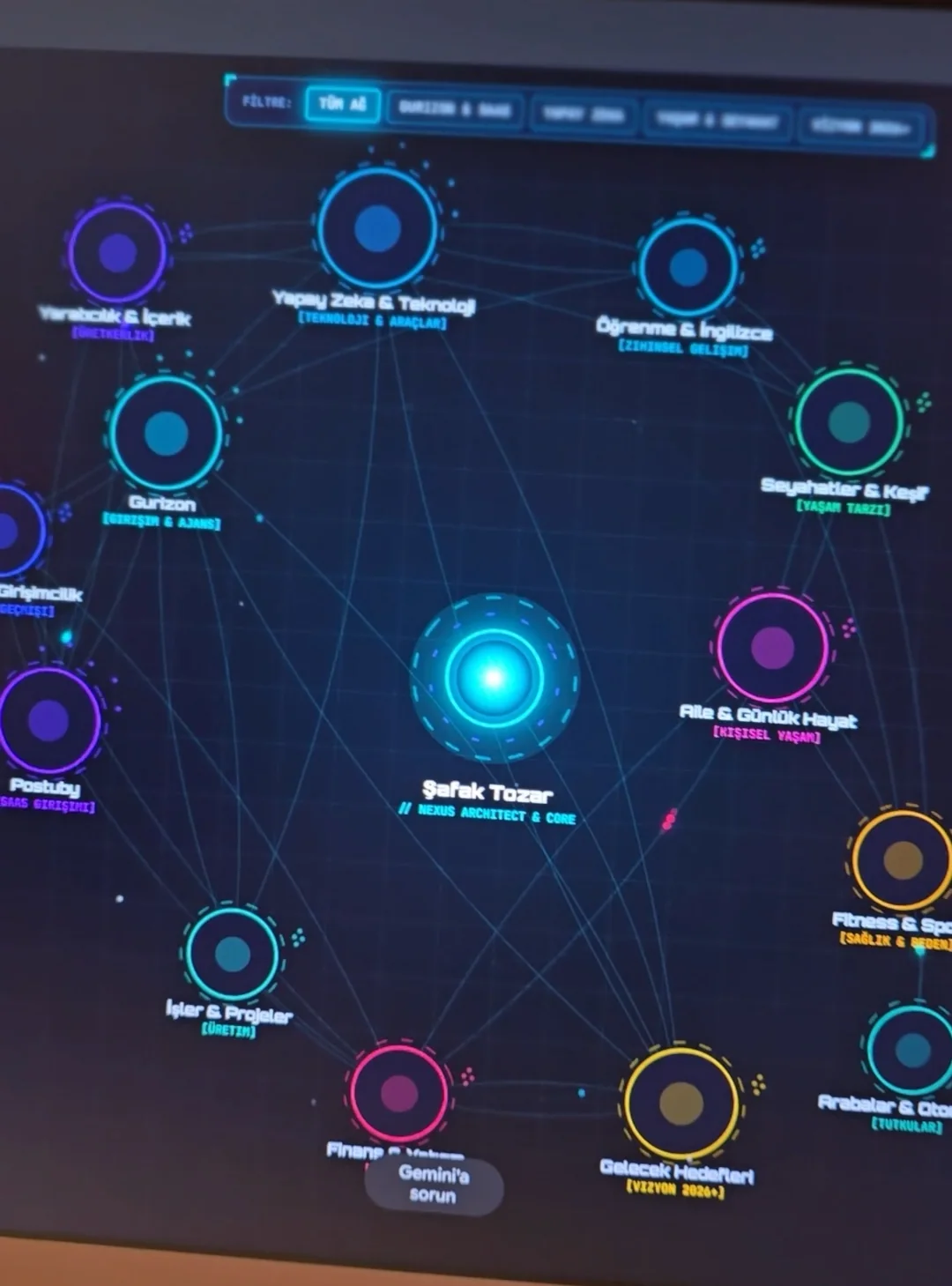
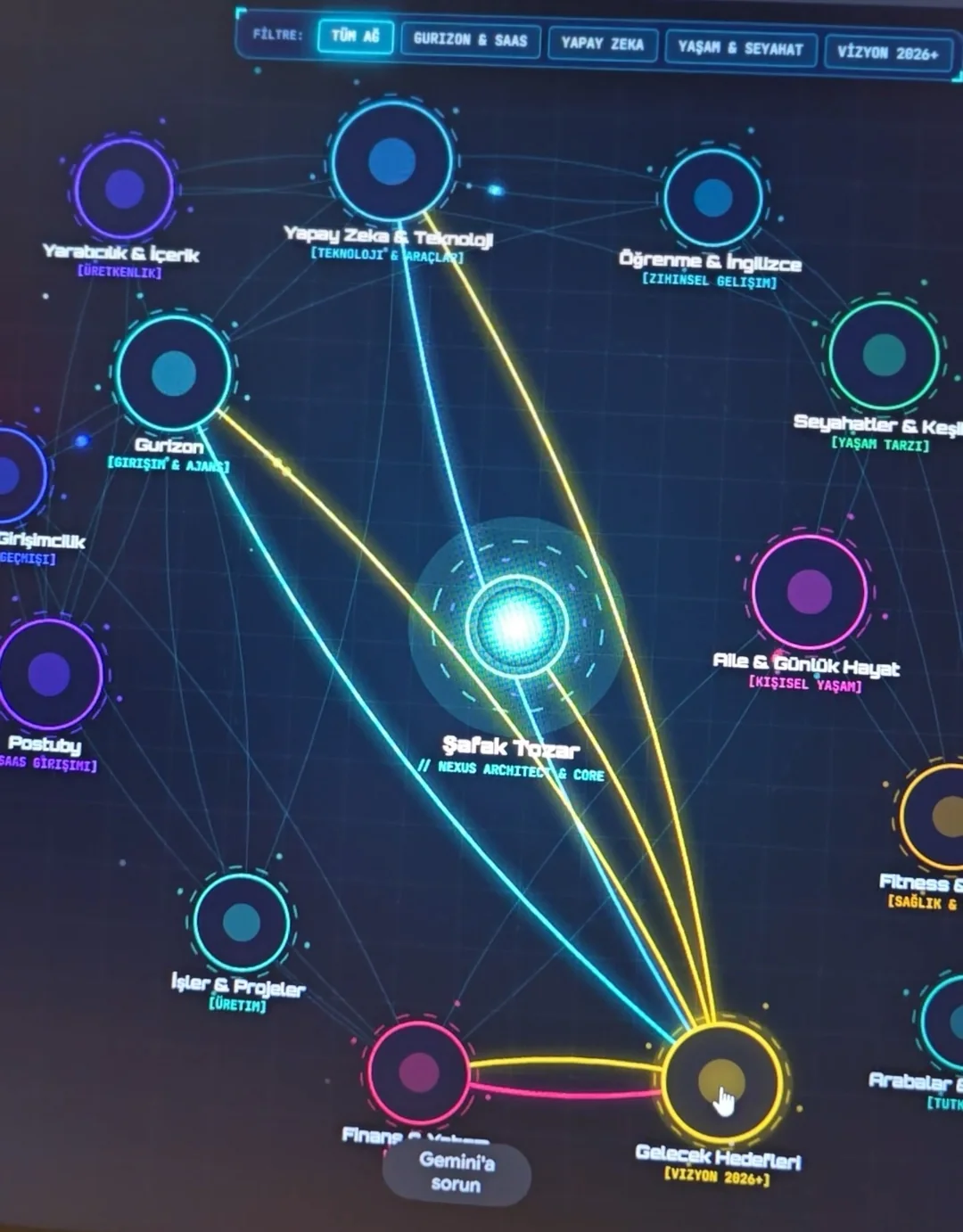
The point in the middle is you. Each circle around it is a part of your life. Click a circle: the glowing lines show what that part is connected to. With the filter buttons at the top you can look at one group only, such as work or travel.
7. Read the details and have mistakes fixed
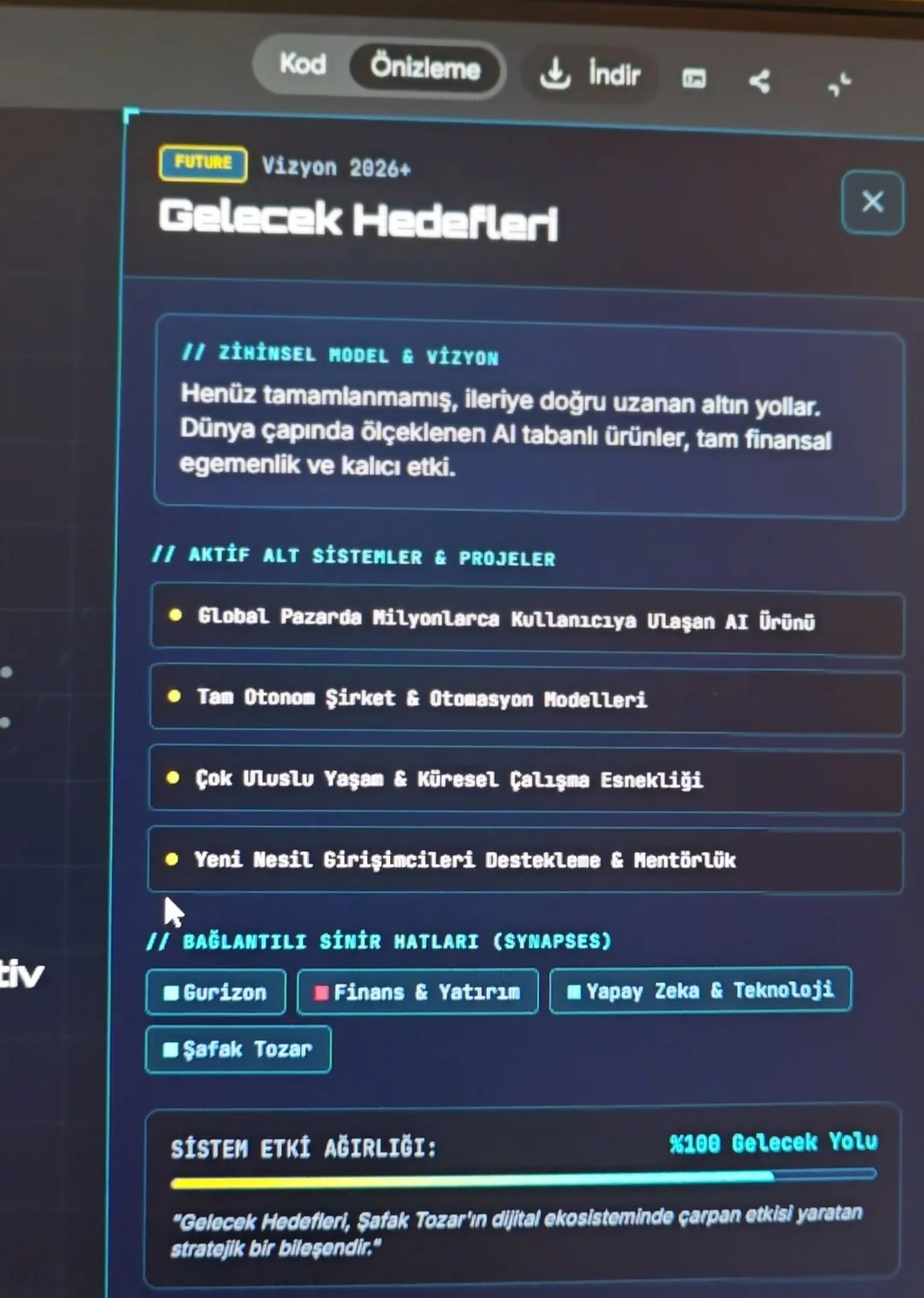
Clicking a circle opens a box at the side with what it knows about that topic. Read all of it. The AI sometimes writes things that are missing or wrong. Type the mistake into the same chat in plain words: "This is wrong, the correct version is this. Fix it." If something is missing: "Add this project too." If you don't want a section: "Remove the finance section."
8. If you don't like the look, say so
You change the design with a sentence too. Examples: "Make it simpler." "Make the text bigger." "Change the colours from blue to green." "Make it look right on a phone as well." Ask for one thing at a time, look at the result, then ask for the next.
9. Save it or share it
There are download and share buttons in the top-right corner of the map. Downloading saves a file to your computer; double-click it and it opens in your browser. Sharing gives you a link.
This map contains private information about you. Before sending the link to anyone, open every circle and make sure nothing is left that you would not want others to see.
Tips
- You got plain text or a bulleted list instead of a map: Canvas mode is off. Start a new chat, select Canvas under the message box and send the prompt again.
- The map came out empty or very short: the AI doesn't know you well enough. Paste the prompt again and describe yourself on the "EXTRA INFO" line. The more you write, the fuller the map.
- The page didn't open or showed an error: write "The page doesn't open, fix the error and generate it again."
- It wrote something you never said: write "I never said this, remove it from the map. Don't write anything you are not sure of."
- Circles overlap or the text is unreadable: write "The circles overlap, space them out and make the text bigger."
- If you use ChatGPT or Claude, the same prompt works there too. Use whichever knows you better.
- If you want to see or delete what the AI keeps about you, look at the memory or saved info section in settings.
Frequently asked
Do I have to turn on Canvas mode?
Yes. Without Canvas the AI describes you in text instead of drawing the map. In Gemini, select Canvas from the tools under the message box, then send the prompt. In ChatGPT the equivalent is "Canvas"; in Claude it is "Artifacts".
Does it cost money?
You can use Gemini with a free Google account. Free use has a daily limit. If you hit it, try again the next day.
What if the AI doesn't know me at all?
You still get a map, but you fill it in. On the "EXTRA INFO" line of the prompt, write your job, where you have lived, your projects and your goals. The AI will use only what you write.
Why does it know so much about me?
Because you told it over time. The AI can remember what it learned from your past chats. If you don't want that, you can turn it off in settings or delete the saved information.
Can other people see my map?
Not unless you share it; the map stays in your own account. If you create a share link, anyone with that link can see it. So check the private details inside before sharing.