How do you get AI to schedule your Gmail emails?
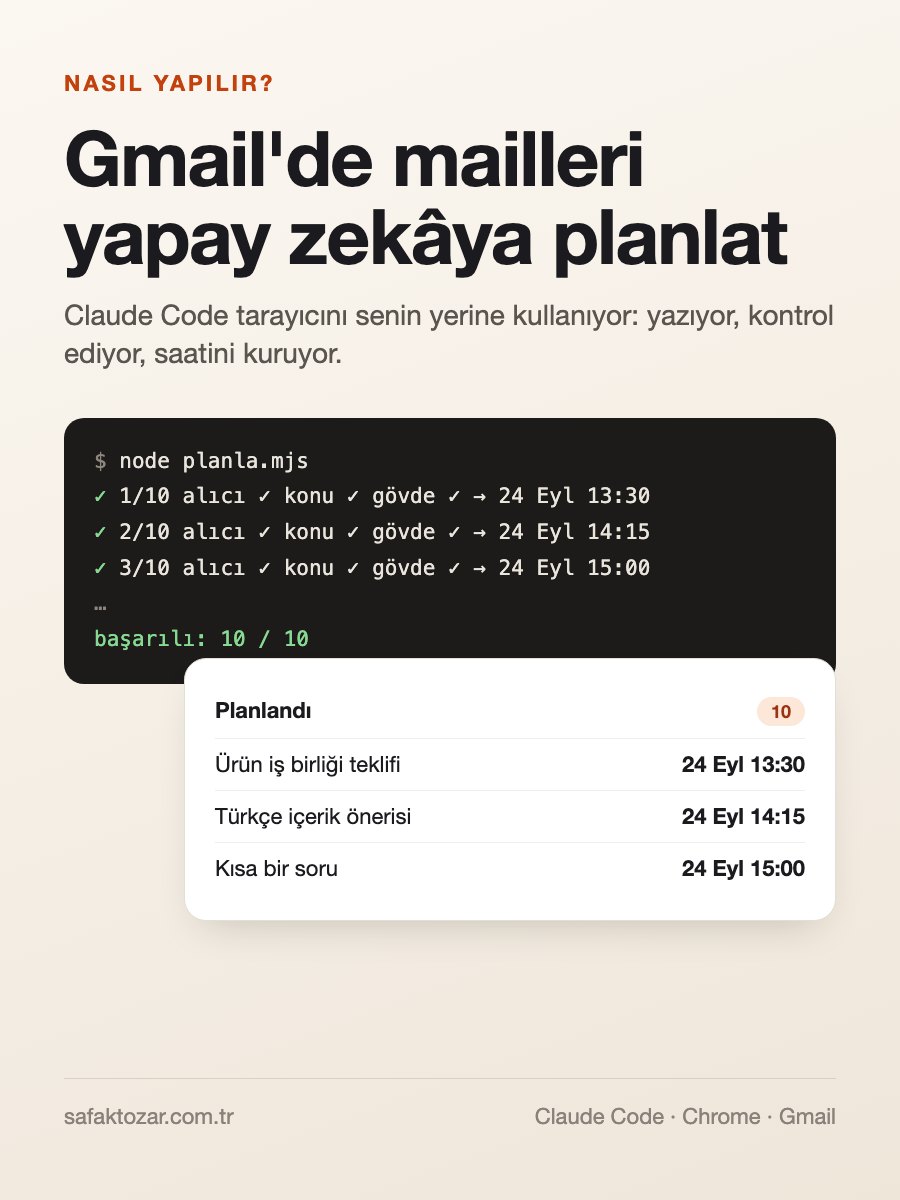
Say you need to email 30 companies, each one written separately, and you want them to land during the recipient's office hours, 15 minutes apart. By hand that's your whole afternoon: open, paste, recipient, subject, 'Schedule send', date, time… thirty times. I now have Claude Code do it. Claude Code is an AI assistant that runs in the terminal on your computer. I don't give it my Gmail password and I don't set up Google's API: Claude opens the Chrome I'm already signed in to in 'remote control' mode and clicks and types, exactly as I would. The emails go into Gmail's normal 'Scheduled' folder and leave from my account when their time comes. Below I explain it as if to someone who's never done anything like this, including every trap I fell into on the way, so you don't.
What you'll need
- A Mac or Windows computer with Google Chrome
- A Gmail account signed in on Chrome
- Claude Code (comes with a paid Claude plan)
- Node.js 22 or newer — you install it along with Claude Code anyway
- Your list of emails: recipient, subject, text, day and time
Step by step
1. First, understand what we're doing
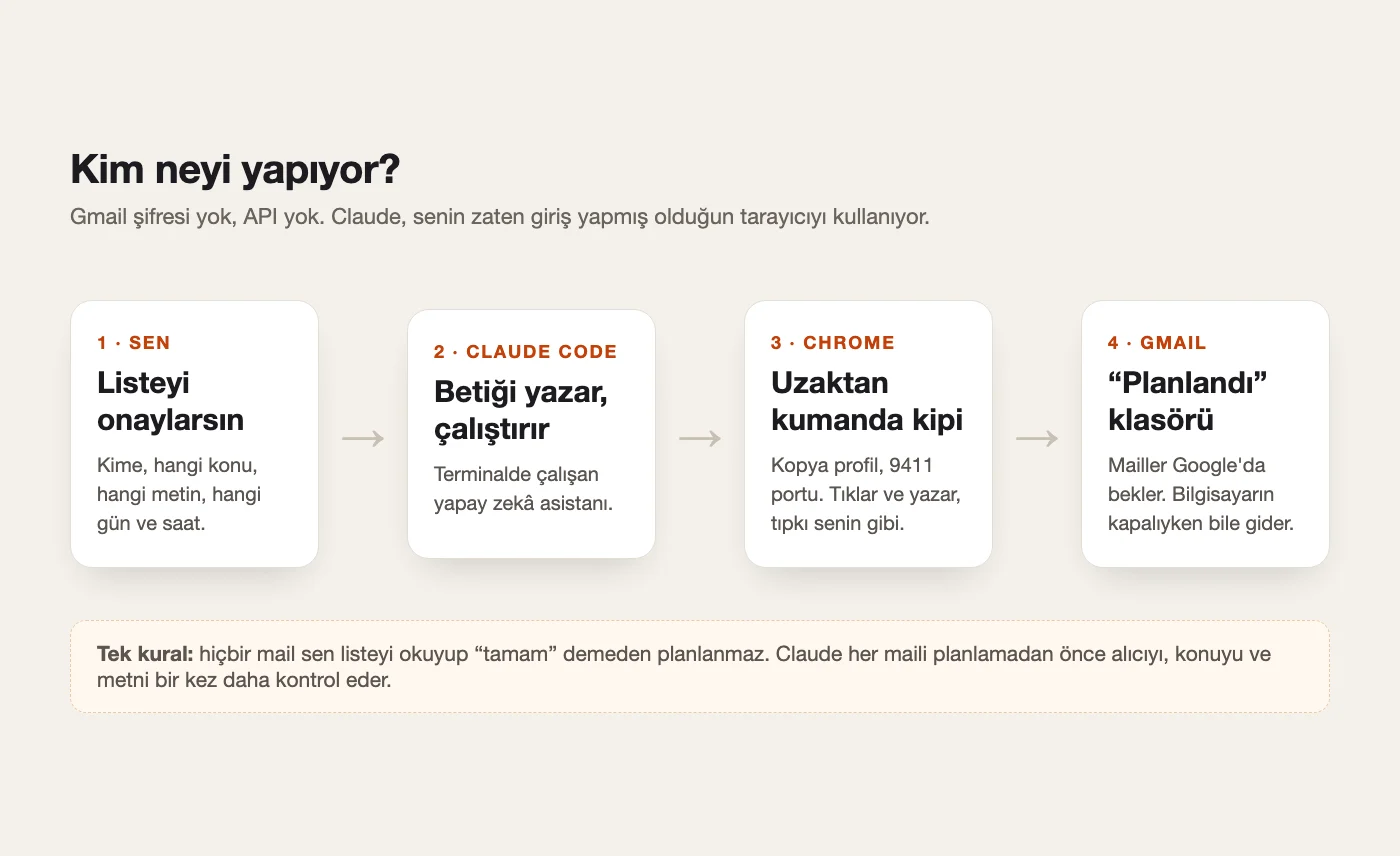
There are three pieces. First, you: you approve the list of emails. Second, Claude Code: the AI in your terminal. It writes a small script and runs it. Third, Chrome: normally you drive Chrome with your mouse. Chrome also has a 'remote debugging' mode, and when it's opened that way another program can tell it 'click here, type this, tell me what this box says'. That's called the Chrome DevTools Protocol (CDP for short). Claude uses Gmail through that channel. There's no trick to it: you're the one signed in to Gmail, a program is just using the mouse and keyboard.
2. Install Claude Code and open an empty folder
Paste the install command from claude.com/claude-code into your terminal and sign in with your Claude account. Then create an empty folder, say 'mail-scheduling', go into it in the terminal and type 'claude'. From here on you just tell Claude what you want in plain sentences. You don't need to know how to code. But whenever Claude wants to run a command it asks for permission, so read what it's about to do and approve it.
Don't switch Claude into a 'do everything without asking' mode. Emails are leaving your account here; you want to see each step.
3. Prepare the email list and read every single one
Every email needs five things: the recipient's address, subject, text, day and time. You can hand these over as a spreadsheet, or tell Claude 'write this kind of email to these 10 companies' and let it draft them. Claude saves the list to a file called 'mails.json'. The most important rule: before anything touches Gmail, ask Claude to show you every email, and read them all. I caught several logic mistakes at this stage, including one email with a sentence I'd never actually say. Fixing it after scheduling is a lot more work than fixing it now.
Think about times in the recipient's time zone, but enter them in your own computer's time. Gmail schedules in your computer's time zone.
4. Paste the ready-made prompt into Claude
The prompt below contains every step in this guide plus the fixes for the traps I fell into. Copy it, paste it into Claude Code, and fill in '[TURKISH / ENGLISH]' at the end with your Gmail interface language. The next steps explain what Claude is doing behind the scenes. They're worth knowing, so that if something goes wrong you understand what broke.
I want you to schedule emails in my Gmail account by controlling my Chrome browser. Do NOT send anything immediately, only use Gmail's "Schedule send".

Setup:
1. Copy my Chrome profile into a new folder called "chromeprof" in this project (only Cookies, Local State, Login Data, Preferences and the Default folder's session files are needed). Don't touch my real profile.
2. Start Chrome with --remote-debugging-port=9411 --user-data-dir=./chromeprof and open mail.google.com. If I'm not signed in, stop and tell me to sign in once by hand.
3. Connect to it with the Chrome DevTools Protocol using Node's built-in WebSocket (Node 22+). No extra packages.

The emails are in mails.json (fields: to, subject, body, date "YYYY-MM-DD", time "HH:MM"). Before you touch Gmail, show me a table of every email and wait for my "ok".

For each email:
- Open a new compose window. Find the dialog through the VISIBLE subject box (old hidden compose windows exist in the page).
- Recipient: real mouse click into the "To" field, Input.insertText, then Tab. Check that exactly one recipient chip appears with the exact address. Retry up to 4 times.
- Subject: set it with the native value setter and fire an input event.
- Body: Gmail uses Trusted Types, so create a policy and set the HTML through it.
- Final check inside that dialog only: exactly one recipient, subject identical, body at least 300 characters. If anything fails, discard the draft and report it. Never schedule a broken email.
- Open the arrow next to Send -> "Schedule send" -> "Pick date & time". Type the date and the time, leave each box with Tab, NEVER press Enter. Read both values back; only if they match, click the schedule button.

At the end, open the "Scheduled" folder and give me a list of every email with its scheduled time. My Gmail interface language is: [TURKISH / ENGLISH].
5. Chrome's profile gets copied
Claude doesn't use your normal Chrome; it makes a copy of your profile. Two reasons: recent Chrome versions refuse remote control on the default profile for security, and you don't want it clashing with the Chrome you have open. The copy contains your cookies and session, so Gmail opens without asking for your password again. Then Chrome starts on port 9411 and loads the Gmail tab.
This copied folder carries your Gmail session. Don't share it, don't upload it anywhere, delete it when you're done. If the session expires after a few days (you see a sign-in screen), just tell Claude to copy the profile again.
6. A new compose window opens
Claude clicks 'Compose' and finds the window that opens. First trap: the Gmail page can contain old, hidden compose windows you can't see. If the program just grabs 'the first window it finds', it keeps typing into an invisible draft and nothing changes on screen. The fix: first find the subject box that's actually visible, then walk up to the window it belongs to. Every later action happens inside that window only.
7. The recipient gets typed (the most stubborn box)
Programmatically 'setting the value' of the recipient box doesn't work. The box looks filled but Gmail doesn't register the address and the email has no recipient. Gmail wants the address typed in and the box left; only then does it turn it into a round 'chip'. So Claude does a real mouse click, sends the address as if typed on a keyboard and presses Tab. Then it checks: is there exactly one chip in this window, and does it hold exactly the address from the list? If not, it clears the box and retries, up to four times.
8. Subject and body get filled in
The subject is easy: the program sets the box's value and signals Gmail that something changed. The body has the second trap: Gmail uses a security rule called 'Trusted Types' that doesn't allow HTML to be pasted in directly. Because of it, the body stayed completely empty on my first try. The fix is to declare a 'trusted' piece of HTML through the official route that rule allows, and write the text with that. Bold text, line breaks and bullet points come through intact.
9. Four checks before scheduling
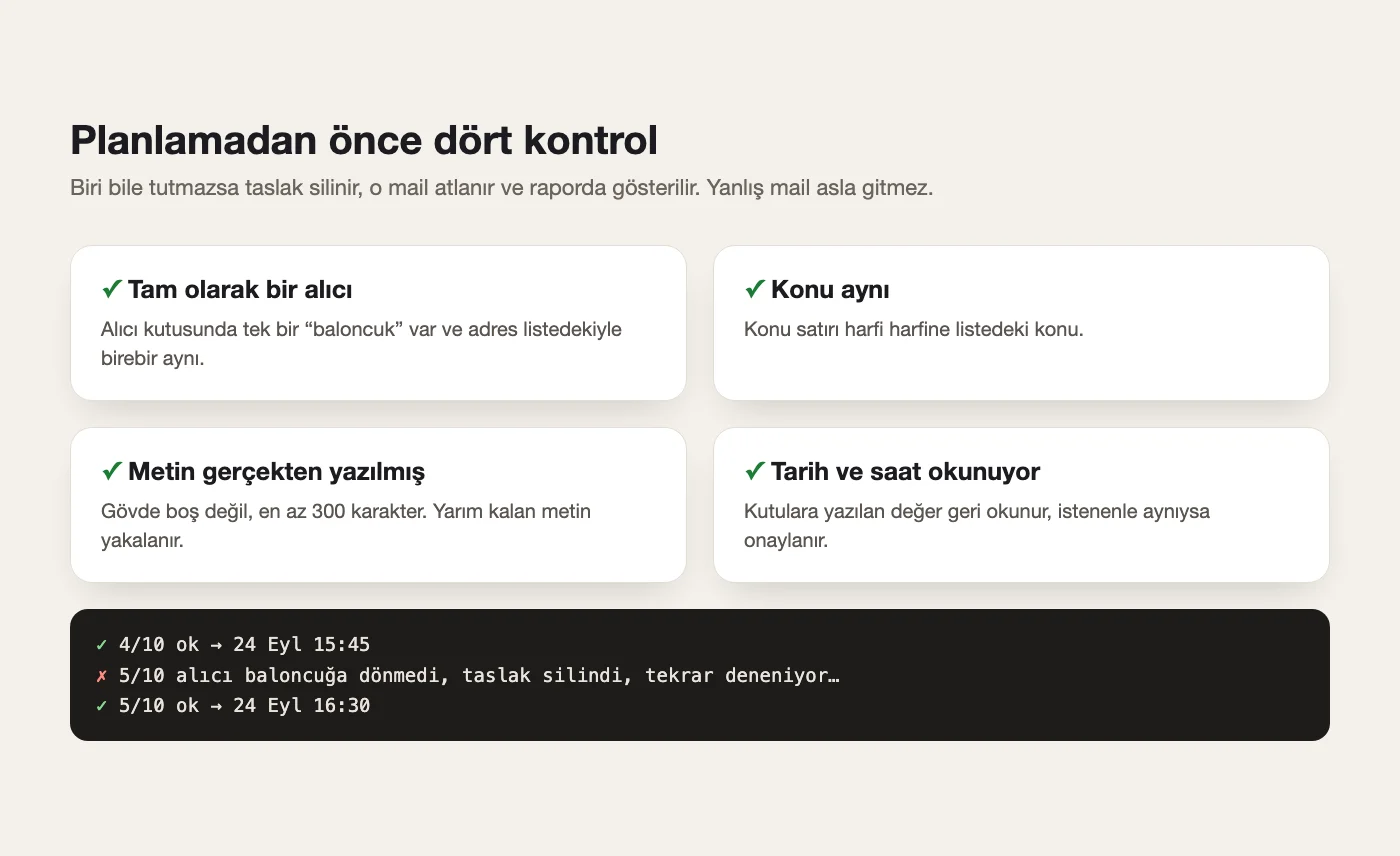
Before an email is scheduled, the program checks four things in that window: exactly one recipient with the right address; the subject identical to the list; the body actually written (at least 300 characters); and date and time correctly entered. If even one fails, the draft is discarded, that email is skipped and flagged in the report. Worst case, an email doesn't go out. A wrong email never does. I wouldn't do this without these checks.
10. Date and time get entered (don't press Enter)
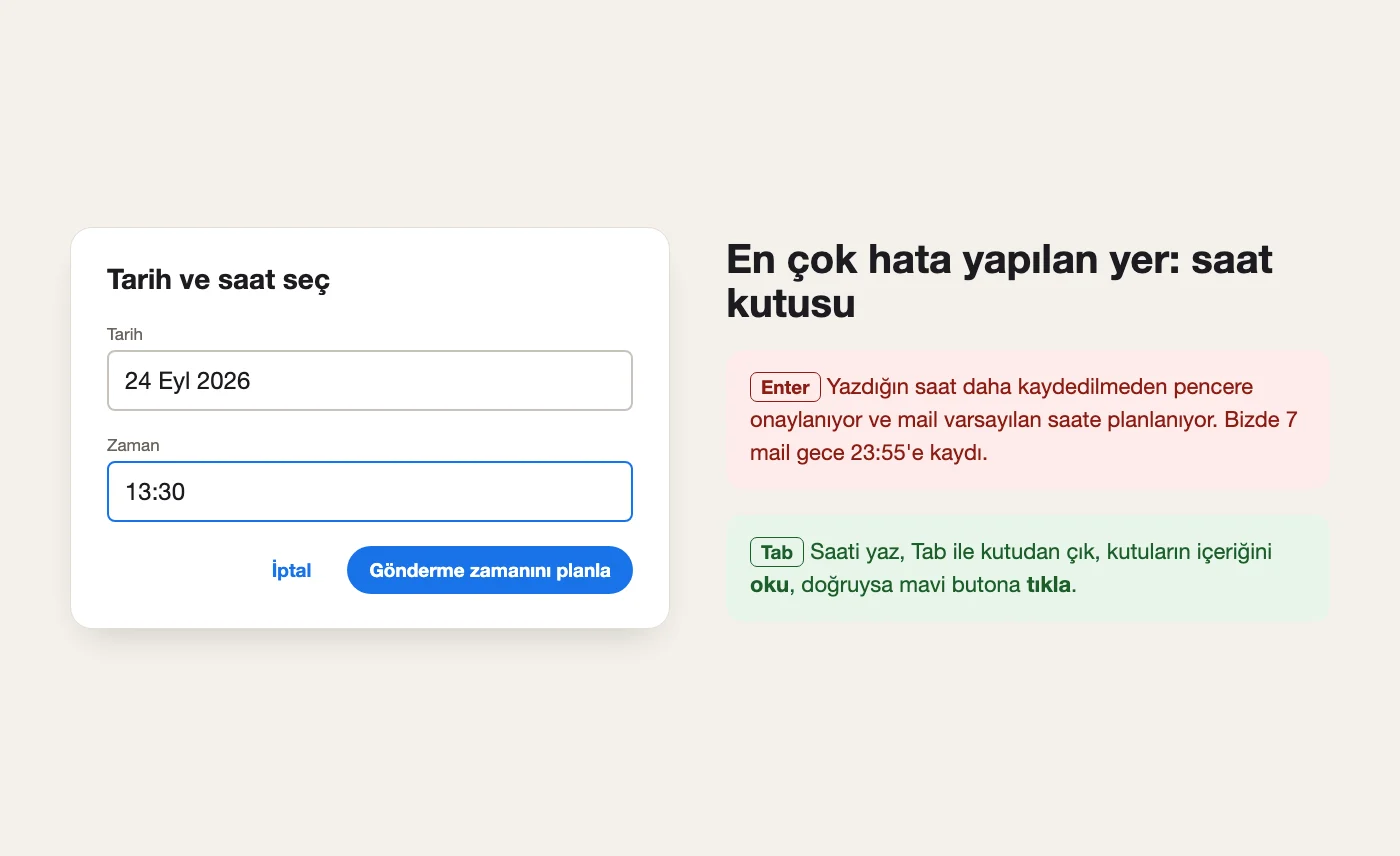
Right next to the Send button there's a small arrow ('More send options'). Claude clicks it, chooses 'Schedule send', then 'Pick date & time'. Two boxes appear: Date and Time. English Gmail wants 'Sep 24, 2026' and '1:30 PM'; Turkish Gmail wants '24 Eyl 2026' and '13:30'. My most expensive mistake happened here: I typed the time and pressed Enter, Gmail confirmed the dialog before my time was saved, and 7 emails got scheduled for 23:55 at night. The right way: type the time, leave the box with Tab, read both boxes back, and only if they're right click the blue 'Schedule send' button.
If this happens to you, don't panic: open the email in the 'Scheduled' folder and hit 'Cancel send'. It goes back to drafts and can be rescheduled at the right time.
11. Verify in the 'Scheduled' folder
When everything's done, Claude opens Gmail's 'Scheduled' folder and lists every email with its time. Take one look yourself too: does the count match, are the times right? These emails now wait on Google's servers. You can shut down your computer or close Chrome and they'll still go out on time. Sent ones land in your normal 'Sent' folder, and the recipient can't tell them apart from an email you wrote by hand.
12. Clean up
When you're done, tell Claude: 'delete the copied Chrome profile and close the remote-controlled Chrome'. The email list and scripts can stay in the folder. Next time 'schedule these 10 emails like last time' is enough and Claude reuses the same script. I scheduled more than 40 emails across several rounds in one week this way.
Tips
- Space emails 15-45 minutes apart instead of stacking them in the same minute. Fewer spam flags, and you can keep up with replies.
- Don't send more than a few dozen cold emails a day from one account. I stayed at 10-15 a day.
- Do the first run on yourself: schedule a single email to your own address and check it when it arrives.
- Make every email genuinely personal. AI speeds up the scheduling, but the same text to 30 people is still spam.
- Don't change Gmail's language mid-way. The script works off button labels; if the language changes, tell Claude.
- If Claude gets stuck, ask it to take a screenshot. It usually spots what's wrong right away.
Frequently asked
Do I give Claude my Gmail password?
No. Claude uses the session already open in your Chrome, and the password is never typed anywhere. The copied profile folder does carry your session though, so don't share it and delete it when you're done.
Will emails go out while my computer is off?
Yes. Scheduled emails wait on Google's servers; your computer doesn't need to be on after scheduling.
How many emails can I schedule?
Gmail allows up to 100 scheduled emails at a time. In practice the real limit is your reputation: send too many cold emails from one account and you start landing in spam.
Why not use the Gmail API?
The API needs a Google Cloud project, a consent screen and credentials, and it has no 'schedule' feature; you'd have to run your own server for that. The browser route needs no setup and the emails look exactly like ones you scheduled by hand.
Can I change an email after scheduling it?
Yes. Open it in the 'Scheduled' folder and hit 'Cancel send'. It returns to drafts, you fix it and schedule it again. You can have Claude do this too.
Does this work with Outlook or other mail services?
The logic is the same: it drives the web interface open in your browser. Button names and positions differ, so Claude has to adapt the script. Most of the traps here (hidden windows, the recipient box, the Enter key) show up there too.