How do you advertise on ChatGPT? A guide to OpenAI Ads Manager
ChatGPT now shows ads, and OpenAI has opened its own panel: Ads Manager (currently in Beta). I put this guide together while walking through a real ad account — every screenshot below comes from the panel itself. If you've used Google Ads or Meta, the structure will feel familiar: campaign → ad group → ad. But one part is completely different: there are no keywords here. You describe, in your own words, who you want to appear in front of. Let's go step by step.
What you'll need
- An ad account at ads.openai.com (Beta access required)
- Company/billing details — a billing profile is mandatory
- A landing page and a square image (at least 256×256 PNG/JPG)
- A daily budget decision (the panel suggests 100 USD/day by default)
Step by step
1. Open the panel and clear the tasks
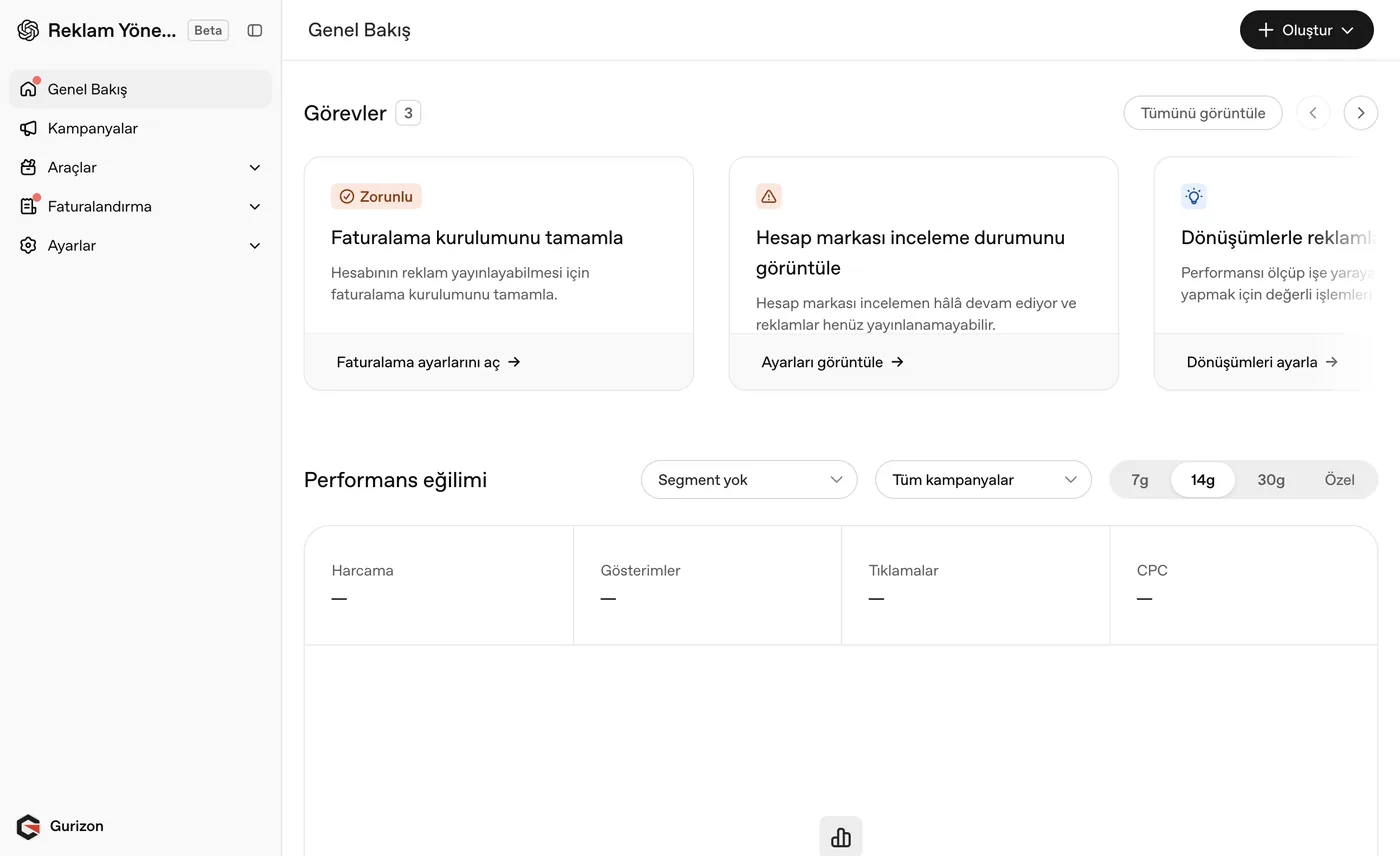
Go to ads.openai.com and sign in; you land on Overview. At the top there's a 'Tasks' row you need to clear before your account can serve ads. Mine had three: billing setup (mandatory), brand review (queued on OpenAI's side) and conversion tracking (optional but valuable). Below sits the performance panel — spend, impressions, clicks and CPC — empty on a new account.
Your ads won't run until the brand review finishes. That one isn't on you — you wait for OpenAI's approval.
2. Create the billing profile
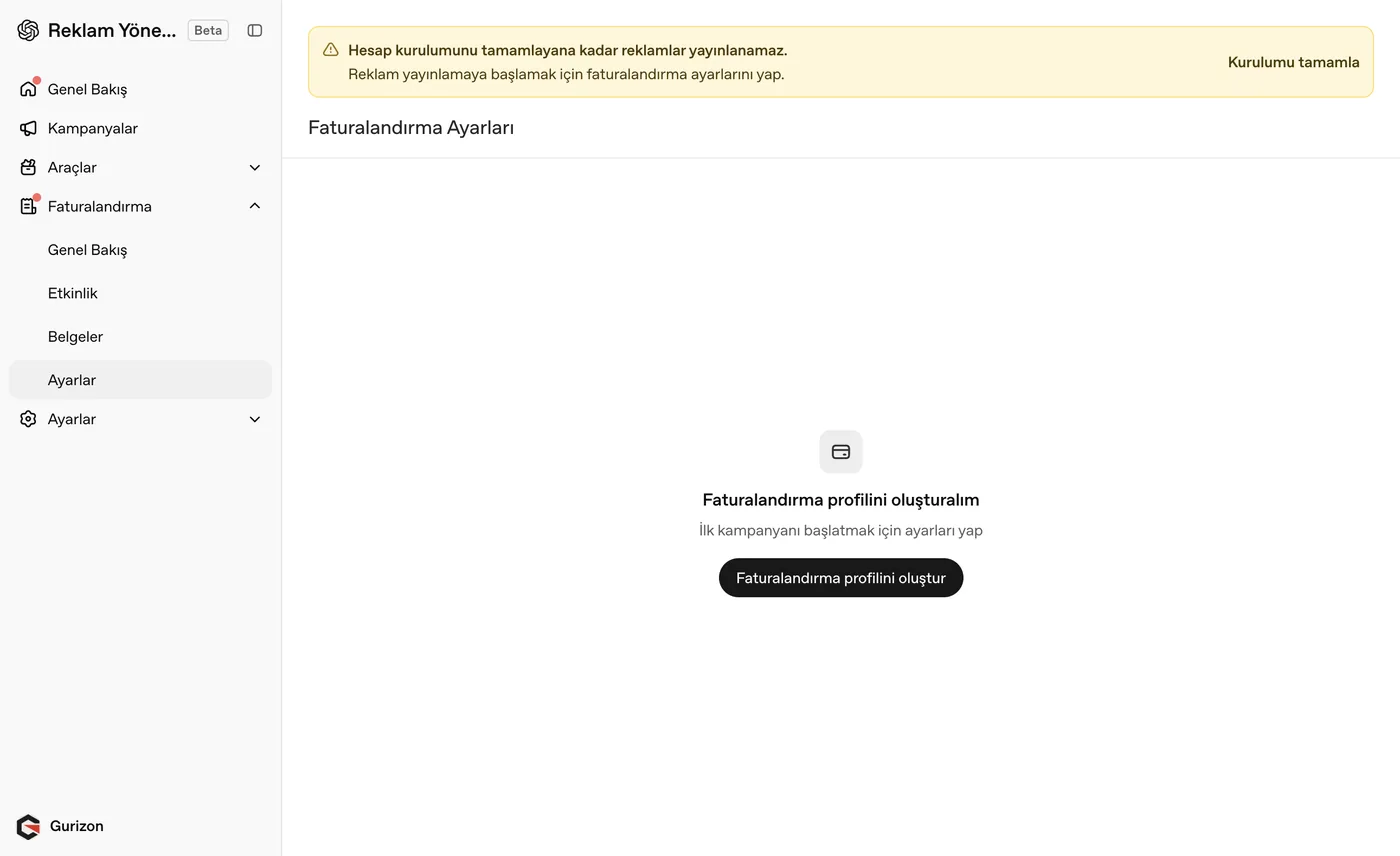
In the left menu go to Billing → Settings and hit 'Create billing profile'. This is mandatory: no campaign goes live until it's done, and an orange warning follows you on every page. Here you enter company details and a payment method; the account currency comes as USD.
3. Create the campaign: name, type, objective
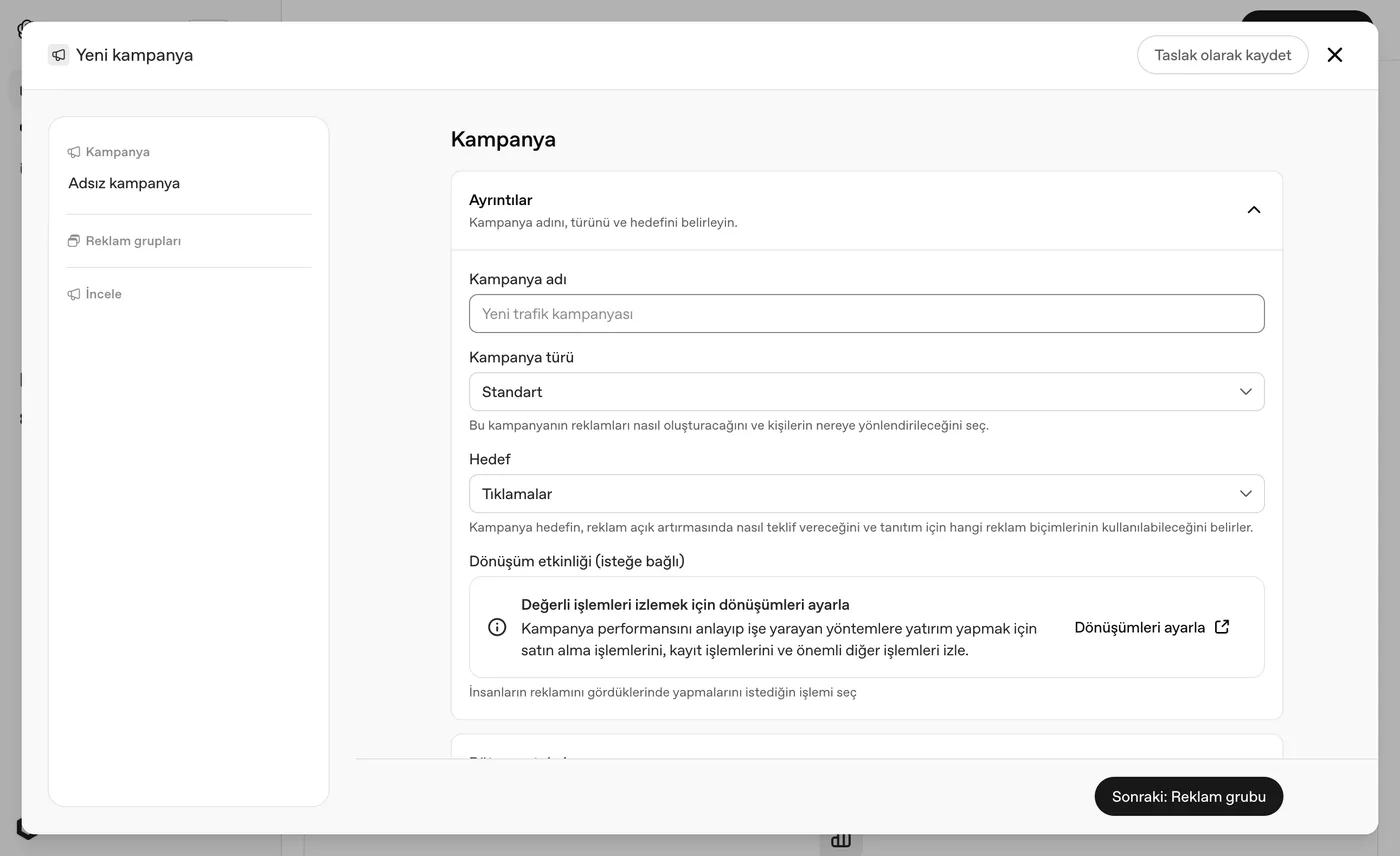
Top right, hit '+ Create' → 'Create campaign'. The wizard has three steps: Campaign → Ad groups → Review. The first screen asks for a campaign name (minimum 3 characters, or it won't let you continue), campaign type (currently 'Standard') and objective. Objective defaults to 'Clicks'; this choice drives both how you bid in the auction and which ad formats you can use. 'Conversion event' below is optional: connect it if you want to track valuable actions like purchases or sign-ups.
4. Set budget and schedule
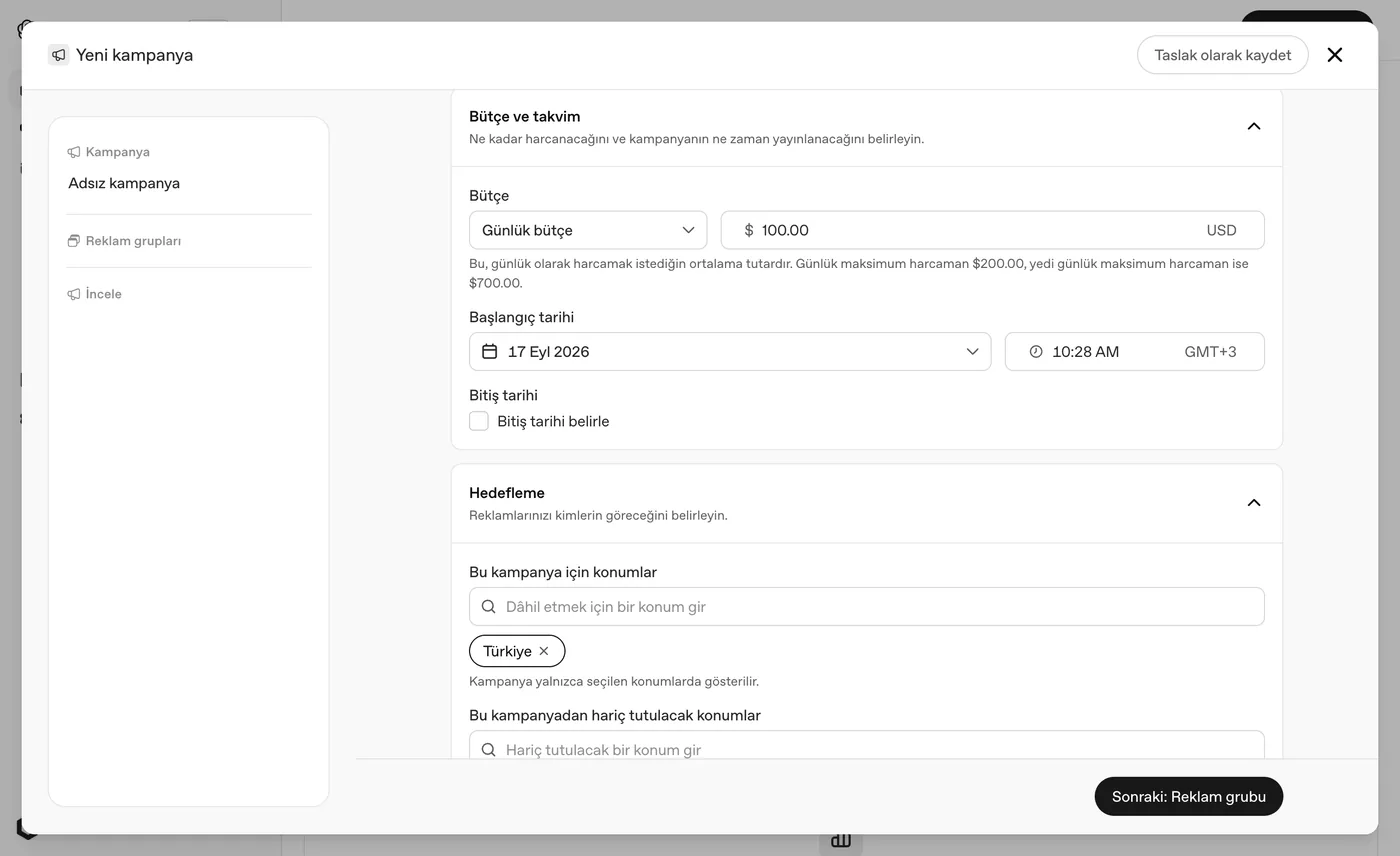
Scroll the same screen and you reach 'Budget and schedule'. You enter a daily budget (100 USD by default). Careful here: that number is an average, not a ceiling. The panel says it plainly — on a 100 USD daily budget your maximum daily spend can be 200 USD and your seven-day maximum 700 USD. The system doubles down on good days and balances out across the week. You pick a start date and time (timezone comes from your account — GMT+3 for me), and an optional end date; leave it unchecked and the campaign runs until you stop it.
Start low on your first campaign. If you breeze past a box that says '100 USD/day', you can meet a 700 USD bill at the end of the week.
5. Choose who sees it: location and platform
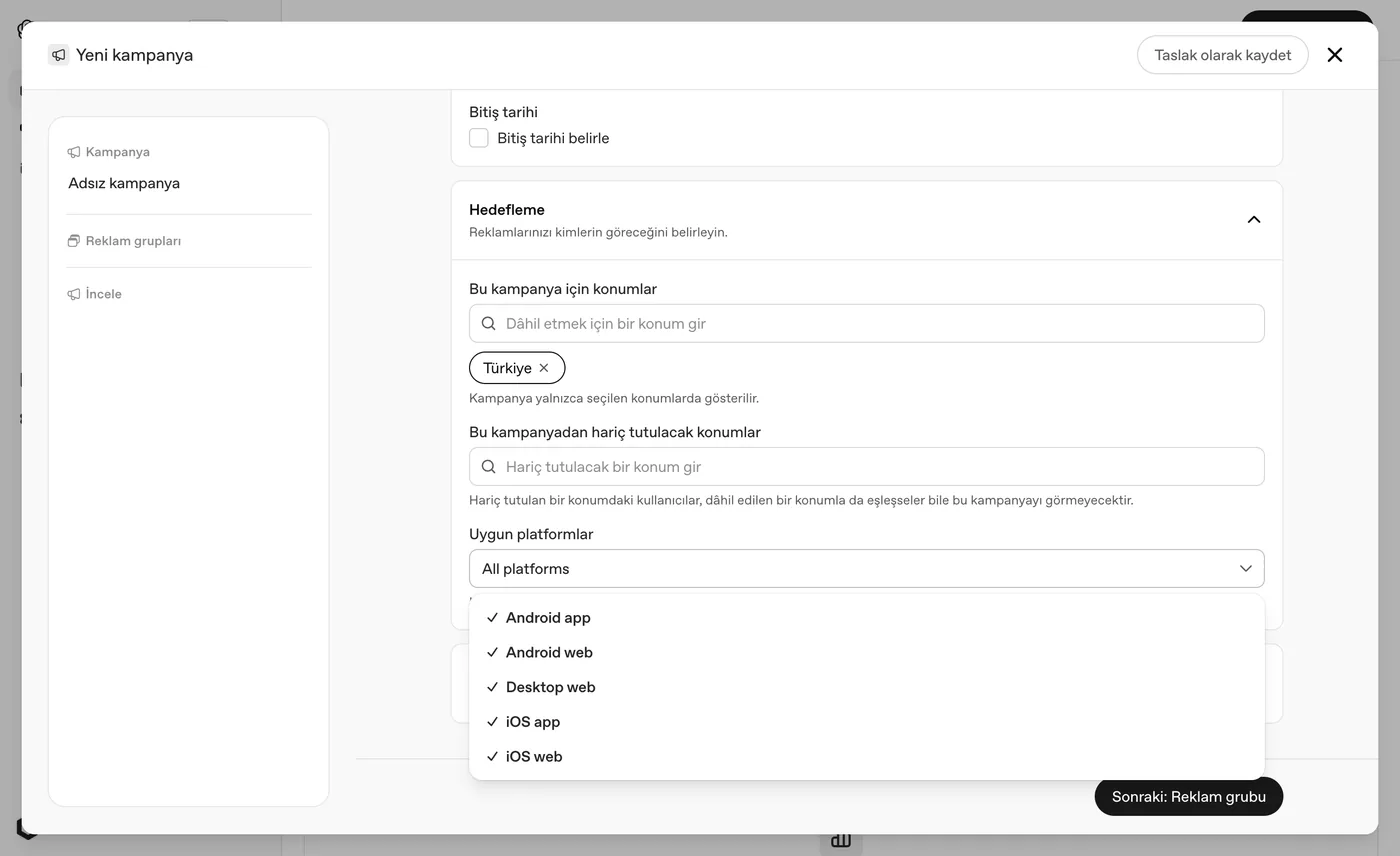
Targeting has two parts. First, location: you type the countries/cities to include (Türkiye in my case) and optionally ones to exclude — a user in an excluded location won't see the ad even if they also match an included one. Second, 'Eligible platforms': Android app, Android web, Desktop web, iOS app, iOS web, all on by default. So your ad can appear both in the ChatGPT mobile app and on desktop web; restrict it here if you want a mobile-only campaign.
6. Ad group: bid strategy and CONTEXT HINTS
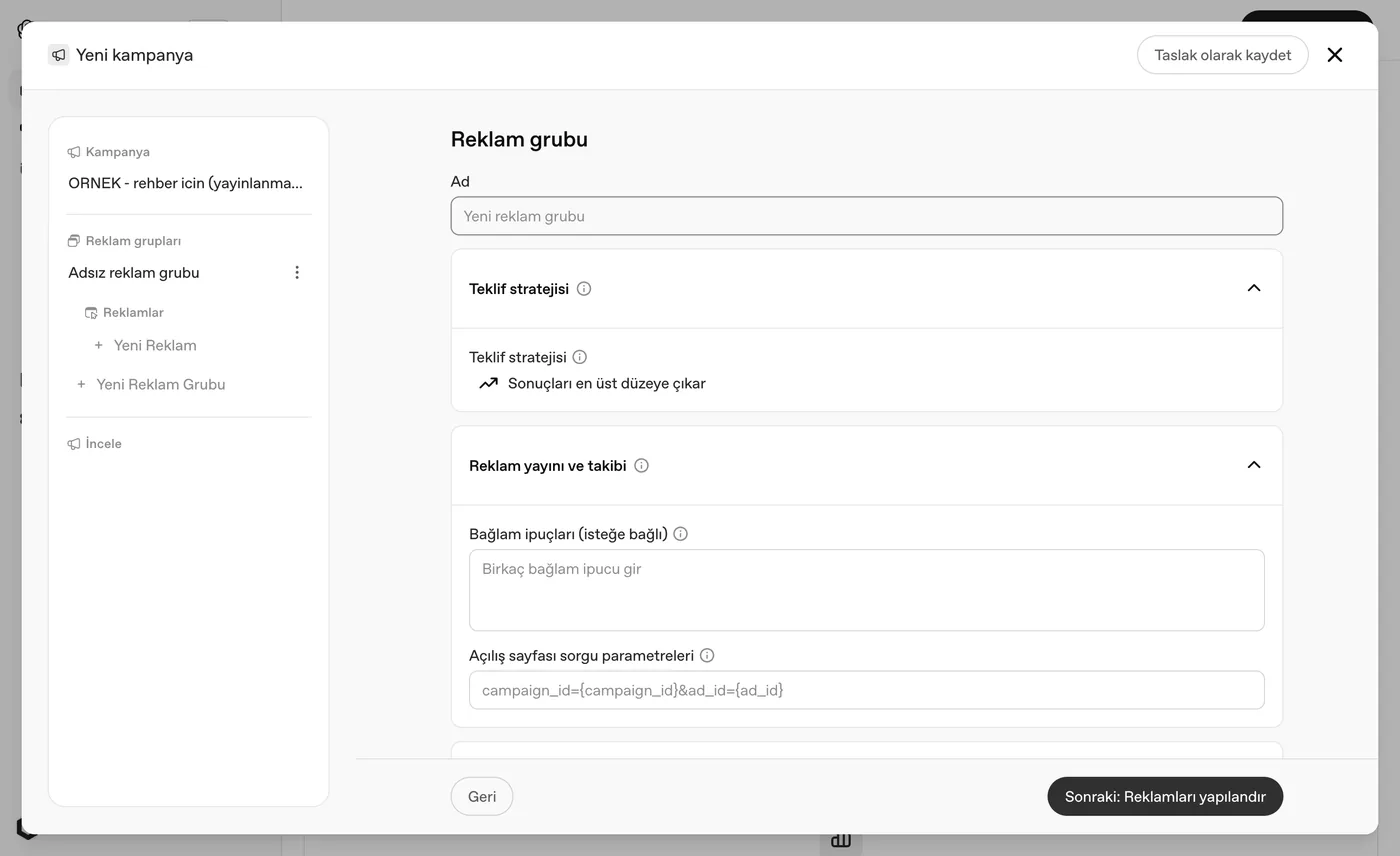
Step two is the ad group. Bid strategy is currently 'Maximise results' — you hand over the budget and let the system optimise. Here's the real difference: 'Context hints'. On Google you write keywords; here you describe, in plain sentences, who you want to show up for. The examples entered on the Gurizon account read like: 'For Istanbul-based businesses looking for custom software, web design and CRM', 'For SMEs seeking AI automation, mobile apps and e-commerce', 'For corporate decision-makers who want design, development and automation from one team'. The AI matches the user's intent in the conversation against these descriptions. There's also 'Landing page query parameters' for telling campaigns apart in your analytics.
Write context hints the way your customer would ask ChatGPT, not the way you'd list your services. Not 'we sell CRM software' but 'for small businesses tired of tracking customers in a spreadsheet'.
7. Write the ad: headline, description, image
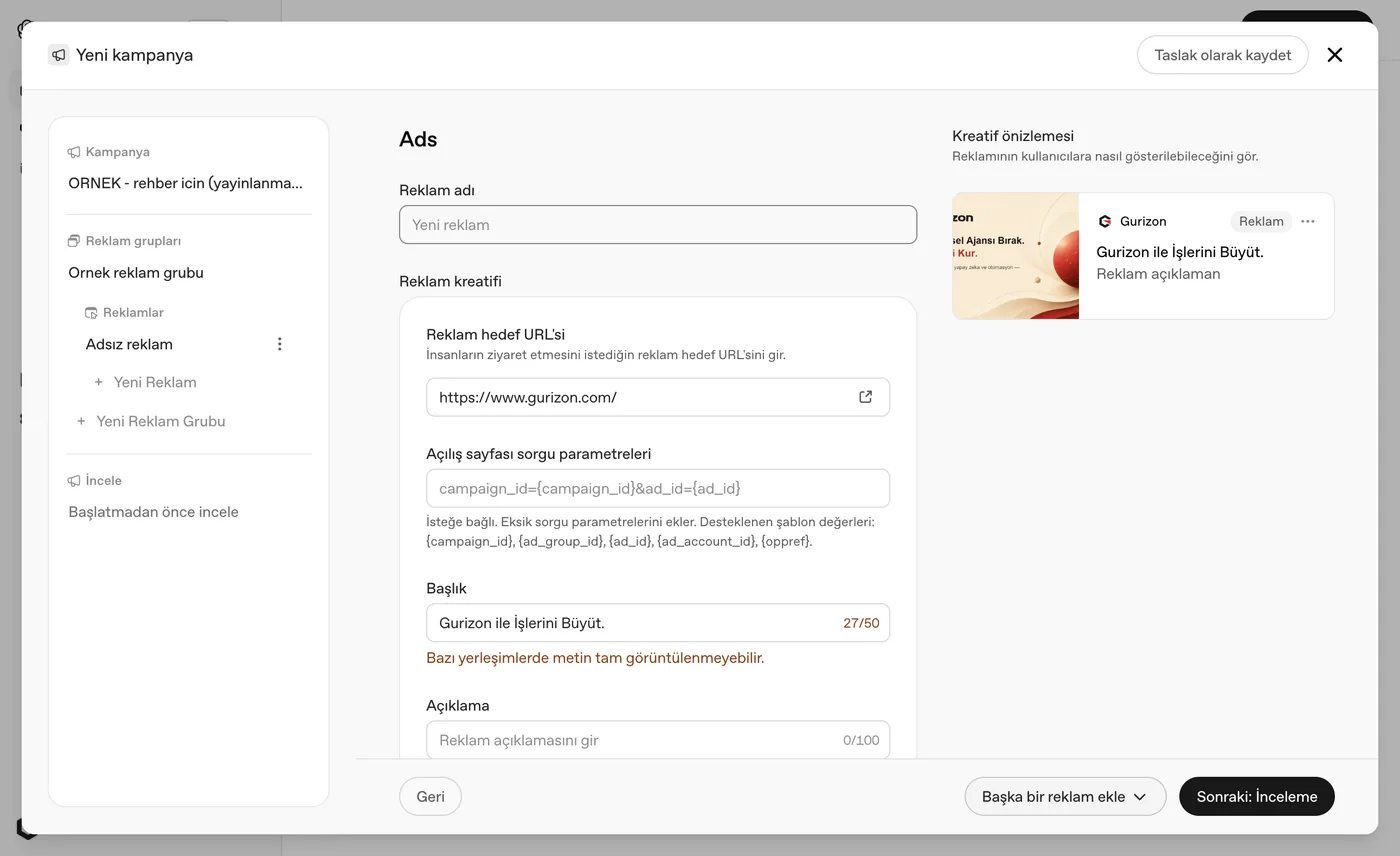
Step three is the ad itself. The fields: ad name (internal), destination URL, headline (max 50 characters), description (max 100 characters) and ad images — PNG/JPG, square, at least 256×256 pixels. The 'Creative preview' on the right updates as you type and shows exactly how the ad appears inside ChatGPT: your logo, brand name, the 'Ad' label, headline and description. If the headline runs long the panel warns you that some placements may truncate it. You can append template values like {campaign_id}, {ad_group_id}, {ad_id}, {ad_account_id} to the URL to measure which ad drove the traffic.
50 characters is tight. Make the headline hit the user's problem, not 'my brand + what I do'.
8. Review and launch
The last step is 'Review before launch': campaign, ad group and ads summarised on one screen; confirm and it goes live (assuming billing is done and the brand review has cleared). If you're not in a hurry, hit 'Save as draft' and come back later. While writing this guide I published nothing — I closed the wizard without saving, leaving no trace in the account.
9. Connect conversions (this is where the money is)
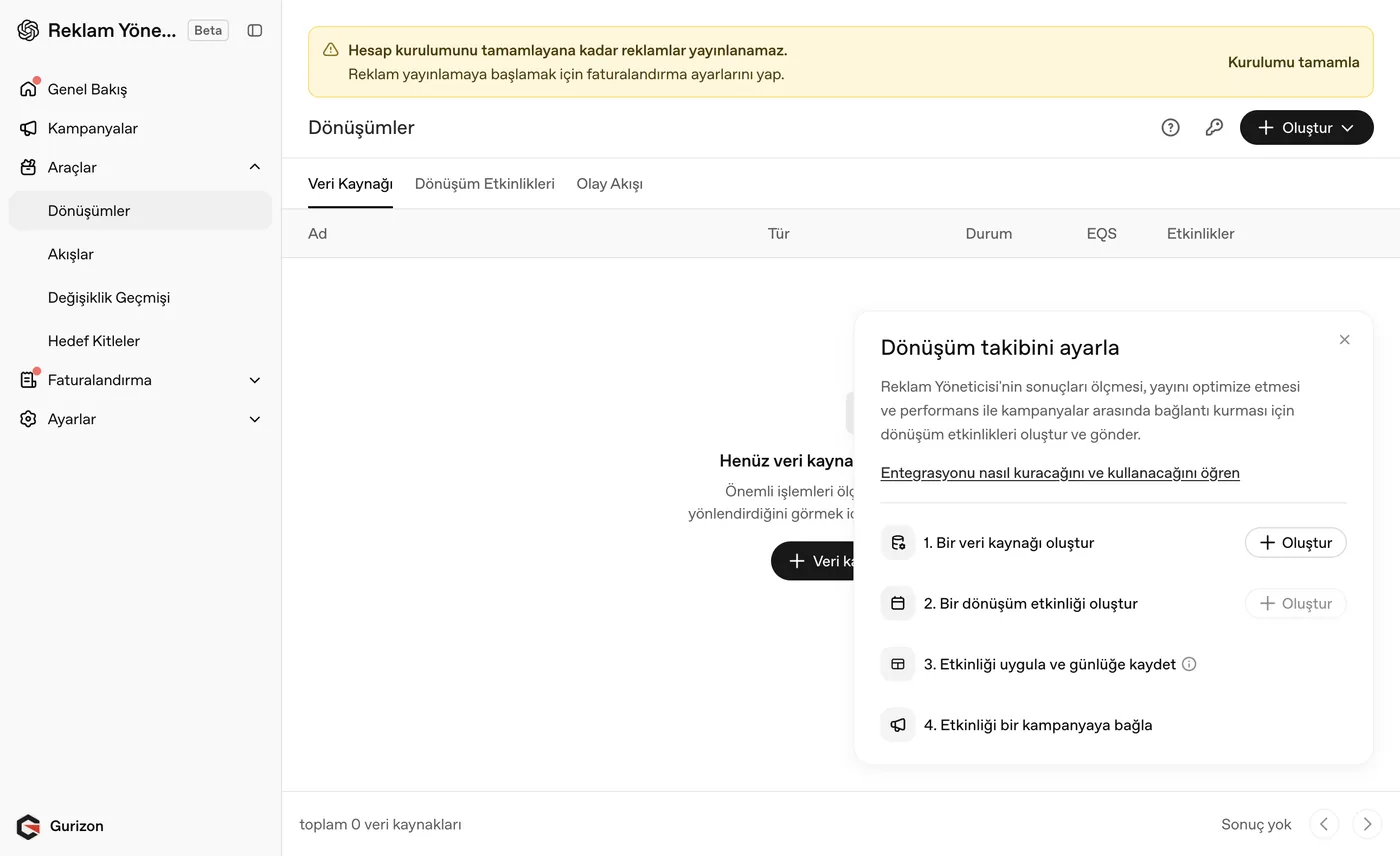
Go to Tools → Conversions. Here you create a data source and send valuable actions — purchases, form submissions, sign-ups — back to the panel, and generate the conversion API key from the same screen. Skip this and all you have is a click count, with no idea which ad actually produced business. The system also loses the signal it optimises on — meaning you spend blind.
10. Tidy up the account and access
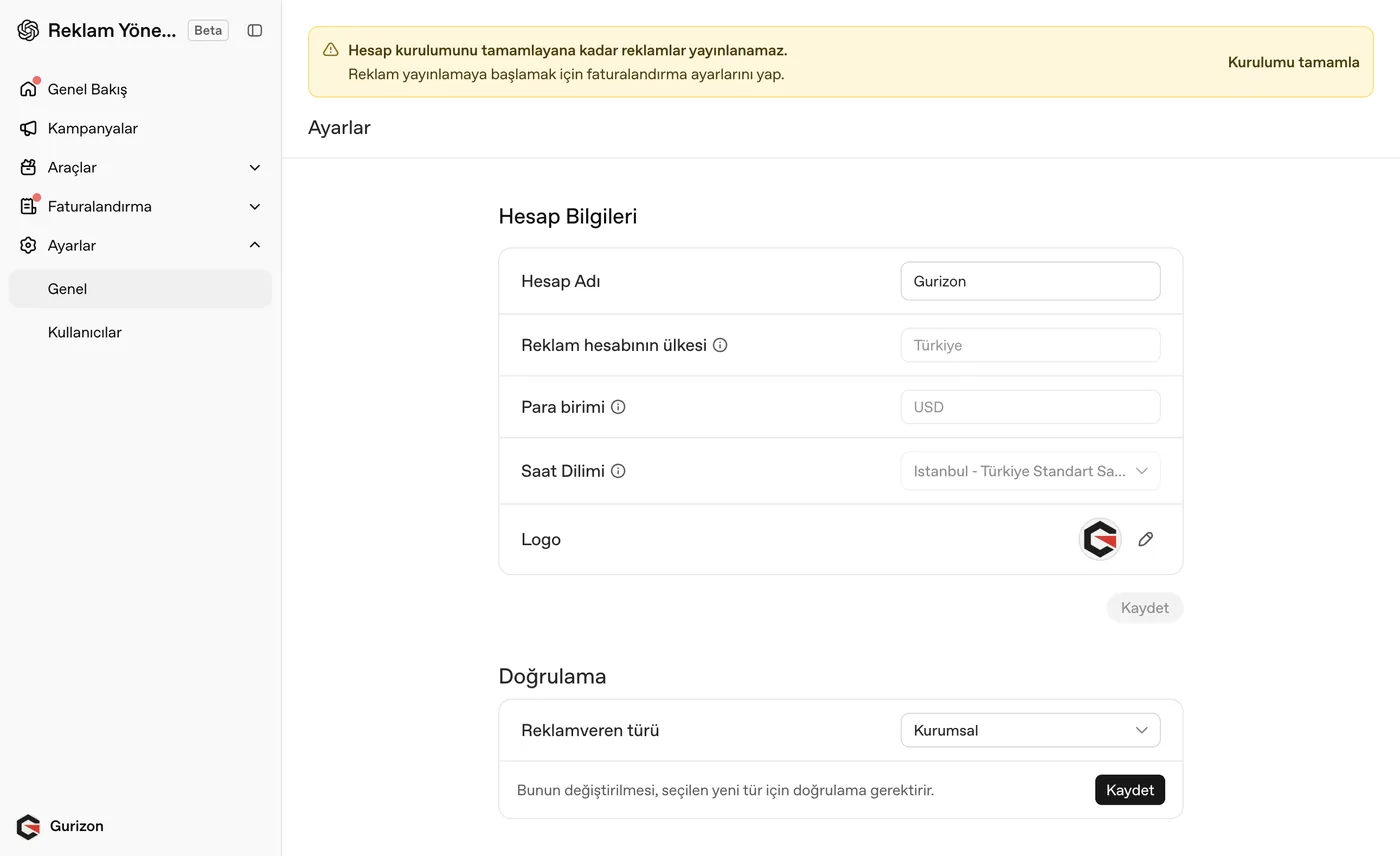
Settings holds the account name, country, currency, timezone and logo — the logo matters because it shows in the ad preview. 'Verification' shows the advertiser type (Business, in my case); changing it kicks off a new verification. You manage API keys here too, and the Users tab lets you add teammates. The Tools menu also has Audiences (upload your own email/phone list for targeting) and Change History (who changed what).
Tips
- Drop the keyword reflex. Context hints do the work here; describe the problem the user is telling ChatGPT about.
- Read the daily budget as an average: it can spend up to 2× in a day and 7× in a week.
- Keep the headline at 50 and the description at 100 characters; check the preview for truncation.
- Use a square image (at least 256×256). A vertical Reels cover won't fit here.
- Append {campaign_id} and {ad_id} to your URL; it's the only way to see which ad works in analytics.
- Before launching, make sure billing and brand review are done; with either missing the campaign just sits as 'Not live'.
Frequently asked
Where exactly do the ads appear in ChatGPT?
Inside the conversation, as a card carrying your logo, brand name and an 'Ad' label. The panel offers five placements: Android app, Android web, desktop web, iOS app and iOS web.
Can't I choose keywords?
No — there are no keywords in this panel. Instead you write 'context hints': plain sentences describing who you want to reach and with what need, and the AI does the matching.
What's the minimum budget?
The panel opens with a 100 USD/day default, but you set the number. Remember it's an average — the system can go up to double on a given day.
I opened an account but my ad isn't running — why?
Most likely one of two things: the billing profile isn't complete, or your account's brand review is still pending on OpenAI's side. The second one just takes waiting.
How is it different from Google Ads?
The structure is familiar (campaign → ad group → ad); the matching is what differs. On Google you show up for a word, here you show up in the context of a conversation. The user explains their problem to ChatGPT at length, and the system matches that intent against your description. So writing the ad like a suggestion dropped into a conversation works better than writing it like a search result.
Is the panel in Turkish?
Yes, the interface comes in Turkish. Only a few technical labels (like 'All platforms') are still in English — normal for a Beta.