Valetudo: How I Cut My Robot Vacuum Off the Cloud and Made It Talk with Claude (Read Before You Root)
Warning: the procedures described here can leave your device completely unusable.
Rooting a robot vacuum is a permanent, advanced procedure with no way back. The vendor app, cloud access, automatic updates, and warranty are gone for good. For certain models (especially variants like viomi.vacuum.v8), Valetudo's official docs state "do not root, many will unrecoverably brick", with no documented recovery path. I did this on my own 6-year-old vacuum knowing I was giving up the original software and risking a dead device. Never attempt this on a vacuum you cannot afford to lose; read the model check step below first.
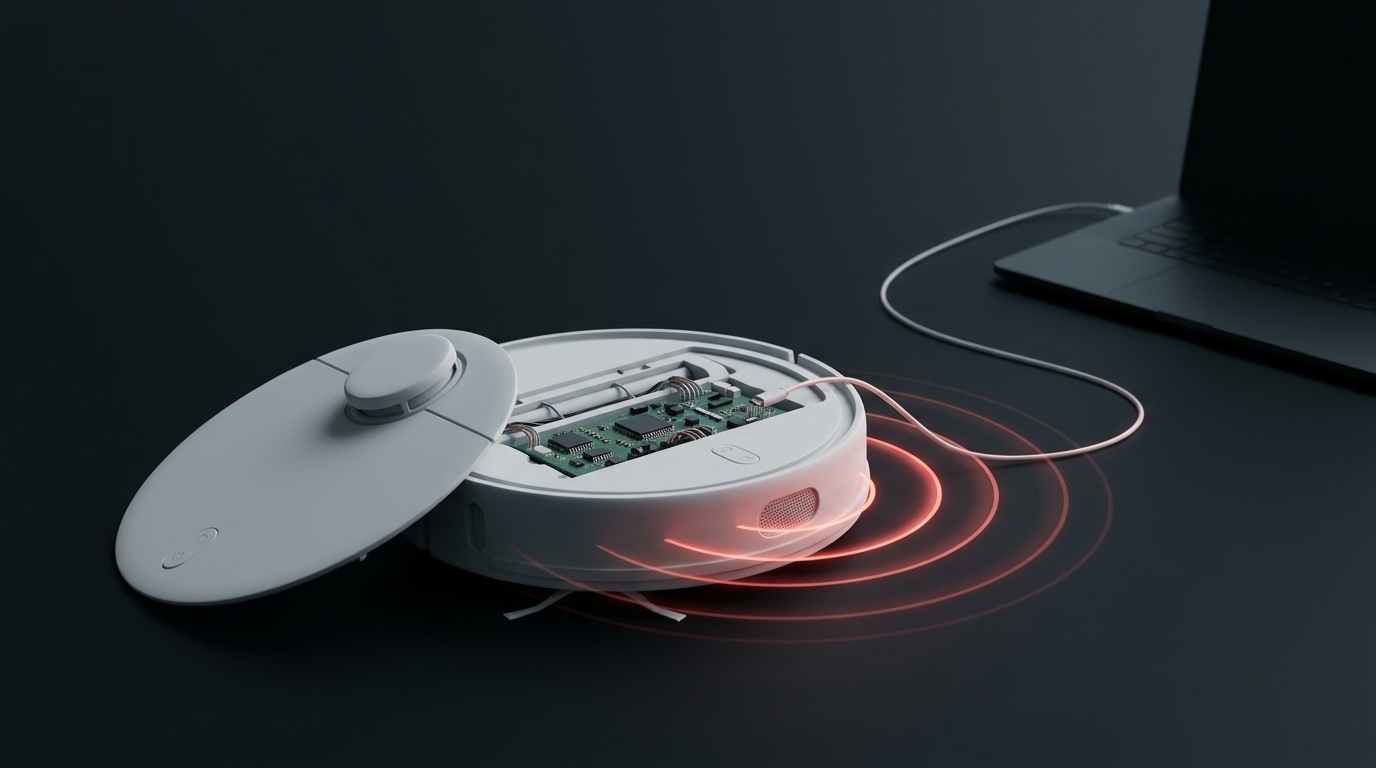
The short answer
Valetudo is open-source "cloud replacement" software that cuts a robot vacuum off the vendor's servers and runs it strictly on your home network. On my own 6-year-old vacuum, I gave up the original app, rooted the software, and combined it with Claude Code, ElevenLabs, and my living-room security camera so the robot complains when it bumps into a door and scolds us when it spots a slipper or sock on the floor. However, one rule is absolute: rooting a vacuum is permanent, irreversible, and ends both the vendor app and your warranty. And on certain variants (such as the viomi.vacuum.v8 revision of the Xiaomi Vacuum-Mop P) Valetudo's own documentation says "do not root, many will unrecoverably brick". Below you'll find both a plain-language, step-by-step breakdown with the exact prompts I gave Claude, and what you must check beforehand so you don't turn your vacuum into a brick.
Why I rooted my 6-year-old vacuum and made it talk
I bought our Xiaomi robot vacuum back in October 2020; for six years it quietly cleaned the house. Two things always bothered me: first, even when I was sitting on the couch two metres away, pressing "start" sent my command to a server in another country before coming back to my living room. Second, a machine that roams the house all day bumping into doors, feet, and slippers had zero personality.
What I wanted was simple: cut the vacuum off the vendor cloud completely, decide what it says myself instead of its stock software, and make it react like one of us — yelling "Who put this door here?!" when it hits a door, sulking "Fine, I'm stuck. Happy now?" when trapped, and scolding "Who left this slipper here? And a sock too!" when it spots a slipper or sock on the floor.
Let me be upfront: I am not an embedded-systems or Linux engineer. From inspecting the robot's internals to generating the Turkish voice clips, turning our living-room security camera into the vacuum's "eyes", and building the remote control panel, I built the entire setup by talking to Claude Code in plain Turkish. But it came with a price: I gave up the vacuum's original phone app completely and sat down accepting that if anything went wrong, my 6-year-old vacuum would become a paperweight.
In the simplest terms: what is actually happening inside?
Online rooting guides throw around words like "SSH, ADB, NAND, squashfs, MQTT, rootfs" until normal people close the tab in the first paragraph. Strip away the jargon and the whole system comes down to four simple pieces anyone can grasp in five minutes:
There is already a tiny computer inside the vacuum
A robot vacuum isn't just wheels and a suction motor. Under the lid sits a small Linux computer, much like an old smartphone. Normally that computer constantly reports your home's map and every move to the manufacturer's servers abroad; the app on your phone talks to that server, not directly to the vacuum.
Valetudo steps in and cuts the phone line to the manufacturer
Valetudo is free, open-source software installed on that tiny computer inside the robot. Its job is straightforward: it wipes the address book the robot uses to call the manufacturer's cloud and puts itself in that spot. The vacuum thinks it's talking to the cloud, while actually talking to Valetudo right inside your home Wi-Fi.
Claude acts as our translator and mechanic
Normally, getting inside the robot, backing up its memory, and placing audio files requires dozens of cryptic terminal commands. With Claude Code open on your computer, you state what you want in plain words; Claude writes the commands, reads the robot's responses, and tells you what to do next.
We give a camera-less vacuum "eyes" using the living-room camera
My vacuum has no camera on it — only a spinning laser tower (LiDAR) and a front bumper. It knows it hit something, but it has no idea whether that thing is a slipper, a sock, or my foot. So I connected the home security camera on our living-room shelf to the vacuum with a small script Claude wrote: when the vacuum slows down or bumps into something, the room camera looks right in front of the robot, sees "slipper and sock", and makes the vacuum yell the exact line for that.
What Valetudo actually is, and what it isn't
Valetudo's own definition is precise: "a cloud replacement for vacuum robots enabling local-only operation. It is not a custom firmware." It doesn't rewrite the motor control or mapping algorithms; it places itself where the robot used to talk to the vendor. You manage the robot from a web page on your home network, and it connects directly to local systems like Home Assistant over MQTT.
Setting expectations matters. Valetudo is not a clone of the vendor app; its docs state that "feature parity with the vendor apps is a non-goal". And Valetudo does not come with a built-in "play any MP3 I want" button. Making the robot speak custom lines happens in the layer we have Claude build on top once local access (SSH and MQTT) is in place.
What you lose, what you gain (The honest table)
In my video I said "to do this, I had to give up the vacuum's original software". This table is why. Before you start, look clearly at what never comes back:
| Topic | Before rooting | After rooting |
|---|---|---|
| Vendor app (Mi Home etc.) | Works | Stops working completely; Valetudo and the vendor app cannot be used together |
| Access outside home | Built-in via vendor cloud | Home Wi-Fi only; for remote access you use your own VPN |
| Firmware updates | Automatic from vendor | None; whatever firmware you install during rooting stays permanently |
| Warranty | Valid | Voided; there is no way back to stock |
| Home map and privacy | Lives on vendor servers | Stays strictly inside the robot and your home; zero cloud traffic |
| Custom voice & camera integration | Closed box; limited to vendor presets | Full freedom to wire up custom Turkish voice lines, bump reactions, and room camera vision with Claude |
The biggest trap: which models work, and which must never be touched
Valetudo's supported-robots page (valetudo.cloud) is the single authoritative list. If a model isn't on it, stop there. But the real danger isn't unlisted models — it's **models sold in the exact same box under the exact same name that hide different hardware inside**.
The **Xiaomi Mi Robot Vacuum-Mop P** (often sold in Turkey as **Mop Pro**) is the textbook example. Valetudo's documentation notes that three different device IDs exist under this name (`viomi.vacuum.v6`, `viomi.vacuum.v7`, and `viomi.vacuum.v8`). While earlier variants can be rooted, the third one — **viomi.vacuum.v8** — carries an explicit prohibition.
Verbatim from the official Valetudo docs: "Do not try to root the viomi.vacuum.v8 as there are many of them that will unrecoverably brick if you try to do so." The rooting tool's own README adds that it can work on some units and permanently brick others "with no way of knowing if yours will work beforehand".
You cannot rely on the SKU printed on the sticker (STYJ02YM / STYTJ02YM) either, because different sources map those codes to opposite revisions. The only reliable way is to check the Wi-Fi network name (SSID) the vacuum broadcasts during setup or its internal model ID in the app. In Step 1 below, I've included the exact prompt to have Claude check this for you.
How I did it on my vacuum using Claude (Step by step with ready prompts)
If your vacuum is out of warranty, you're ready to give up the vendor app, and you accept the risks above, here is how I ran the entire process with **Claude Code** in 6 steps. Below each step is a ready-to-copy prompt box — just fill in the bracketed parts for your own device. Never move to the next step until you've seen the current one work.
Have Claude verify your vacuum's exact ID and whether it is safe to root
This is the most important step before you touch a screwdriver. Open an empty folder in Claude Code and paste the prompt below. Claude will first show you how to find your vacuum's true model ID, then check Valetudo's official list and tell you either "we're good to go" or "don't touch it, it will brick".
If Claude finds a "do not root / brick" warning for your model (for instance, if yours is a viomi.vacuum.v8), do not force it — stop right here.
I want to root my robot vacuum, install Valetudo and make it talk, but before I touch a single screw I need to know whether my device is supported. Explain everything in plain, everyday language without jargon. What I have: - Name on the box / listing: [E.G. Xiaomi Mi Robot Vacuum-Mop Pro / Roborock S5] - Model ID shown in the vendor app or in the robot's setup Wi-Fi name: [ENTER IF KNOWN, OR WRITE "Tell me how to check"] Do the following: 1. If I don't know my exact model ID yet, explain in 3 simple steps how to find it in the phone app or from the Wi-Fi network name (SSID) the robot broadcasts. 2. Check my exact model ID against the official list at valetudo.cloud/pages/general/supported-robots/. 3. If multiple hardware revisions exist under the same retail name (such as v6, v7 and the warned viomi.vacuum.v8 under 3irobotix CRL-200S), warn me clearly. 4. Translate every warning for my model into plain language, and list the exact cable and tools I need on my desk before we start.
Use Claude as a mechanic in the passenger seat for backup and Valetudo install
On supported models, rooting typically happens by connecting the robot to a computer via a data-capable micro-USB cable (in the battery compartment or service port) over ADB. The biggest mistake people make is blindly pasting a wall of forum commands. The prompt below locks Claude into strict rules: one step at a time, full NAND partition backups to your computer first, verifying backup file sizes, and only then installing Valetudo.
Make sure your micro-USB cable is a solid data cable, not a charge-only cable. If the connection drops during partition writing, the robot may fail to boot.
My model is [YOUR MODEL ID, e.g. viomi.vacuum.v7] and now we will install Valetudo step by step. Our rules: 1. Give me ONLY ONE STEP at a time. Never move to the next step until I run it and show you what happened. 2. Before every command, explain in one simple sentence what it does inside the robot. 3. Once we connect the robot to my computer (over ADB / SSH via the micro-USB port in the battery bay or service port), BEFORE touching any system partition, back up every flash partition (all partitions in /proc/partitions such as nanda..nandi) to Desktop/VacuumBackup on my computer. Verify the backup file sizes before moving on. 4. Guide me through pushing the Valetudo binary (e.g. valetudo-armv7) and firmware package to the exact path (/mnt/UDISK or model-specific path), cutting off vendor cloud servers, keeping SSH access enabled, and opening the local Valetudo web UI in my browser. Start with Step 1: how do I connect the vacuum to my computer and test that my computer sees it?
Generate the vacuum's grumpy persona and Turkish voices (ElevenLabs + 110 Hz speaker tuning)
I didn't sit in front of a microphone recording lines one by one. I described the persona to Claude: a grumpy vacuum tired of doing all the housework, complaining when hitting doors, and threatening to report crumbs to Beijing. Claude wrote 25 lines across 5 categories and voiced them with ElevenLabs. Here is a crucial trick: the vacuum's built-in speaker cannot handle deep bass and will buzz. The 110 Hz high-pass filter in the prompt strips out muddy low frequencies so the voice cuts cleanly above the vacuum motor noise.
Before running this step, have your ElevenLabs API key ready or save it to ~/.elevenlabs_key.
We are building a "Grumpy Vacuum" voice pack for my robot vacuum. Create a folder called vacuum_voice on my Desktop and set everything up there. 1. Persona: A grumpy, hilarious robot vacuum tired of being the only one working in the house — complains when bumping into a door or foot, scolds us when it sees slippers and socks, and threatens to report the mess to Beijing. 2. Write 25 lines across 5 categories and save them to lines.json: - Bumping & getting stuck (e.g. "Who put this door here?!", "Move your foot out of my way! I said move it!", "Who left this slipper here? And a sock too!", "Fine, I'm stuck. Happy now?") - Throwing shade (e.g. "I'm the only one working in this house anyway.", "Waking me up at dawn... I'm human too. Well, a robot, but still.") - Threatening (e.g. "This much mess... I'm reporting it to Beijing.", "Who dropped these crumbs? I have it on camera.") - Starting & finishing (e.g. "Mission complete. Nobody touch me now.", "Battery dying... My final words: stop dropping crumbs.") - Short reactions ("Ugh!", "Come on!", "Excuse me!") 3. Use my ElevenLabs API key (eleven_v4 model) to generate all lines as MP3 files. 4. CRITICAL: The vacuum's built-in speaker cannot reproduce deep bass and will buzz. Apply a 110 Hz high-pass filter to every clip, normalize speech loudness to -15 dB, and soft-limit peaks at 0.95 so the voice cuts cleanly through the vacuum motor noise.
Upload the voices to the vacuum and wire them to bump/stuck events
Once the vacuum runs Valetudo on your local network, it broadcasts every state change (started, bumper hit, stuck, low battery, docked). Think of it as the vacuum talking over a walkie-talkie on your Wi-Fi. With the prompt below, Claude uploads the audio files into the vacuum and writes a lightweight listener script: the moment the robot gets stuck, it automatically plays "Fine, I'm stuck. Happy now?", and when it docks it plays "Mission complete. Nobody touch me now."
Now upload these voice clips to the vacuum and wire them up to its real-time movements. 1. Copy the processed audio files over SSH into the vacuum's persistent storage (/mnt/UDISK/ses/) and test playing one through the robot's built-in speaker (using tinyplayer / its local audio player). 2. Write a small Python script that listens to my vacuum's local Valetudo events (via MQTT or its local HTTP API). 3. Automatically play the matching audio clip from the robot's speaker when it enters these states: - Starts cleaning -> Start line - Bumper hit or sudden stall -> Bump line - Error / stuck state -> "Fine, I'm stuck. Happy now?" - Battery drops below 15% -> "Battery dying... My final words: stop dropping crumbs." - Docks and starts charging -> "Mission complete. Nobody touch me now." 4. Add an 8-second cooldown between lines so it doesn't spam speech when bumping repeatedly in a tight corner. Give me a single command to test it.
Give a camera-less vacuum "eyes" with your room camera (Slipper & sock reaction)
This is the part that surprised viewers the most: "Your vacuum has no camera on it — how does it know there's a slipper and a sock in front of it?" It doesn't by itself; it borrows the eyes of the home security camera on our living-room shelf. Claude connected the room camera stream (via go2rtc) to the vacuum's state. When the robot slows down or bumps into something, the script crops the area right in front of the vacuum from the room camera and asks a vision model what's there — playing the slipper/sock line, the foot line, or the door line accordingly.
Frames from your home camera are never saved to disk; the prompt instructs Claude to process them strictly in memory.
My robot vacuum has no camera — only a LiDAR turret and a bumper. However, I have a home security camera in the living room (RTSP / go2rtc). I want the vacuum to use that camera as its eyes so it knows what is blocking it and reacts accordingly. Build this: 1. Pull the live stream from my living-room camera locally via go2rtc. 2. Track the vacuum while it cleans (using its Valetudo map coordinates or visual tracking in the camera frame). 3. Whenever the vacuum slows down near an obstacle or its bumper triggers, crop the region right in front of the robot from the camera frame and ask a fast vision model: "What is directly in front of the vacuum? (door / foot / slipper_sock / chair / rug / other)". 4. Trigger the exact matching voice line on the robot's speaker: - slipper_sock -> "Who left this slipper here? And a sock too!" - foot -> "Move your foot out of my way! I said move it!" - door -> "Who put this door here?!" - chair -> "Brother chair, step aside already." - rug -> "The rug swallowed me! Save me!" 5. Keep camera frames in memory only — never write them to disk. Show me step by step how to connect my camera.
One-tap soundboard for phone and desktop (The "Grumpy Vacuum" remote)
Automatic triggers work great, but when guests come over or you're filming a video on your phone, firing off the exact line on cue is half the fun. In this final step I had Claude build a single-page web remote: open it on your phone or laptop and you get 25 big buttons for every line. Tap any button (or press its key on your keyboard) and the vacuum says it on the spot.
Alongside the automatic reactions, build a single-page "Grumpy Vacuum" remote-control soundboard (web UI) so I can also trigger any voice line with one tap while filming on my phone or when guests are over. Requirements: 1. A single web page that opens in a browser on both phone and desktop. 2. A sticky top bar showing the currently playing line, plus "Repeat", "Random", and a red "Mute" button. 3. Large, tap-friendly buttons grouped under the 5 categories ("Bumping & stuck", "Throwing shade", "Threatening", "Start & finish", "Short reactions"). 4. Tapping any button (or pressing its key on a desktop keyboard: 1-8, Q-I, A-K, Z-M) plays that line immediately; Space plays a random line, Enter repeats the last one, Esc mutes. 5. Keep the phone screen awake while open (wakeLock). Create the page and tell me how to open it on my local network.
What to type into Claude if something goes wrong (Ready troubleshooting prompts)
If something doesn't work as expected during setup, don't spend hours digging through forums. Tell Claude Code what you see in plain words; here are the troubleshooting lines that helped me most:
- If the computer doesn't see the vacuum over USB: "I plugged the vacuum in via micro-USB, but adb devices is empty. Check whether the ADB service is being killed at boot and walk me through the enable-adb step one action at a time."
- If the voice sounds muffled under the motor noise: "The vacuum talks, but it's hard to make out the words while the motor is running. Apply a 170–7800 Hz band-pass filter and a +2 dB presence boost around 2.6 kHz, then re-upload."
- If the vacuum repeats lines too quickly in corners: "When trapped in a corner, it repeats the same sentence back to back. Increase the cooldown for the same event group to 15 seconds and pick a different line each time."
- If the room camera recognizes slippers too slowly: "Obstacle recognition from the camera takes 2–3 seconds. Instead of sending the full frame, crop only the 400x400 pixel region in front of the vacuum so the vision model responds in under a second."
What happens if it goes wrong, and a final check before starting
The word this community uses most is **brick**: a device that won't power on, shows no light, and is invisible to both the phone app and your computer. The rooting tool's own page doesn't sugarcoat it: "In general, rooting vacuum robots is a dangerous procedure that can lead to unfixable bricks. Make sure to not attempt to root anything that you can't afford to lose."
Especially on warned variants like `viomi.vacuum.v8`, there is no documented software recovery; forum threads tell stories of users who could only revive a bricked unit by ordering a replacement mainboard online. Before opening the lid, ask yourself these 5 questions:
- Did you check the true device ID (Wi-Fi SSID or in-app model ID) rather than the box name? Don't start anything before running Step 1 with Claude.
- If your model carries a "do not root / brick" warning (especially viomi.vacuum.v8), do not push your luck — stop immediately.
- Do you accept that the vendor phone app (Mi Home, etc.) will never work again after rooting and that there is no way back?
- Are you committed to verifying full NAND partition backups on your computer in Step 2 before approving any install command?
- If this vacuum turns into a brick tomorrow morning, will it disrupt your life? If yes, the right decision is not to touch it.
Key takeaways
- Valetudo cuts a robot vacuum off the vendor cloud and runs it on your local network only; it is open-source cloud-replacement software, not custom firmware.
- With Claude Code you don't need to memorize Linux terminal commands; from model verification and backups to ElevenLabs voice generation and camera vision, you can build every step in plain language.
- Even if your vacuum has no onboard camera, you can give it "eyes" by pairing your room's security camera (go2rtc + vision AI) so it recognizes slippers, socks, feet, and doors.
- Rooting is permanent: the vendor app, cloud access, updates, and warranty are gone with no way back.
- For the viomi.vacuum.v8 variant of the Xiaomi Vacuum-Mop P, Valetudo's docs warn "do not root, many will unrecoverably brick"; always verify your true device ID with Step 1 first.
Frequently asked
Do I need to know how to code to do this?
No. I didn't write code line by line either; I gave Claude Code the prompts in the 6 steps above. Claude explains what each command does, reads the output, and fixes issues in plain language. You just need to go in order without skipping steps.
How does the vacuum see a slipper or sock in front of it if it has no camera?
The vacuum itself doesn't see it — it gets help from the home security camera overlooking the living room. When the robot slows down or bumps into something, the script Claude wrote grabs the crop right in front of the vacuum from the room camera, checks what object is there with a vision model, and plays the matching line.
Can I go back to the Mi Home app after rooting?
Valetudo's official documentation states "there is no way back". Rooting replaces the cloud configuration and system partitions, so the vendor cloud no longer recognizes the robot, and the vendor app cannot work alongside Valetudo. Don't start thinking "I'll revert it later".
How do I find out my model's exact revision (e.g. v7 vs v8)?
Don't trust the SKU on the box. The reliable way is to check the Wi-Fi network name (SSID) the robot broadcasts during Wi-Fi setup or its internal model ID in the vendor app. Paste the Step 1 prompt into Claude Code and it will guide you through checking it against Valetudo's supported list.
How much does this setup cost?
Valetudo itself is completely free and open source. You'll use a paid Claude subscription (for Claude Code) to build the scripts and ElevenLabs to generate the 25 voice clips (which uses only a couple of minutes of audio quota). The only physical item needed for USB-rooted models is a solid data-capable micro-USB cable.